
Google Authentication User Guide
To set up Google Authenticator, the Google Authenticator application must be installed on the mobile device. (For an iOS device, install the free application from the App store. For an Android device, install the free app from the Play Store.)
Instructions to setup Google Authenticator for iPhone.iPhone
- Find the App Store icon
 on your device and tap to open.
- Using the Search function, type 'Google Authenticator' and tap the Search icon.

- The Google Authenticator app will display.
- Click on the ‘Get’ button next to the Google Authenticator app.

- Once Google Authenticator is installed, the ‘Install’ button will now show ‘Open’.

For Android:
 Find the Play Store icon on your device and tap to open.
- Using the Search function, type 'Google Authenticator' and tap the Search icon.
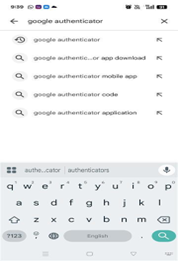
- The app will display. And tap on the 'install' button next to the Google Authenticator app.

- Once Google Authenticator is installed, the ‘Install’ button will now show ‘Open’.

- Open the Google Authenticator app, it displays the following screen.
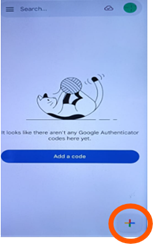
- Tap the + icon at the bottom of the screen as shown in above image and then select ‘Scan a QR code’.
- At this stage, you are expected to have initiated the process of registering a Front Page account. Please refer to the document "FrontPage_StepsToSignIn" to complete the new user registration. (Refer “New Users (Sign Up)”section in the "FrontPage_StepsToSignIn" document)
- When you attempt to sign up, you will receive an email requesting account verification. By clicking the ‘Confirm Account’ button, you will be redirected to the page illustrated below.
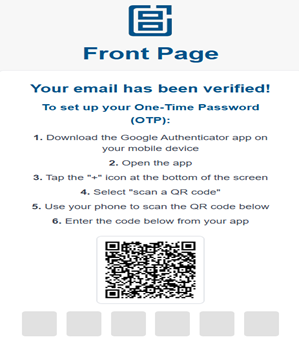
- Once the QR code is scanned, the front page will be added to Google Authenticator.
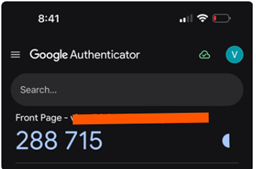
- Enter the displayed OTP (as shown in the above image) on the sign-in page to access the application.