
Navigation – Web
Users can access:
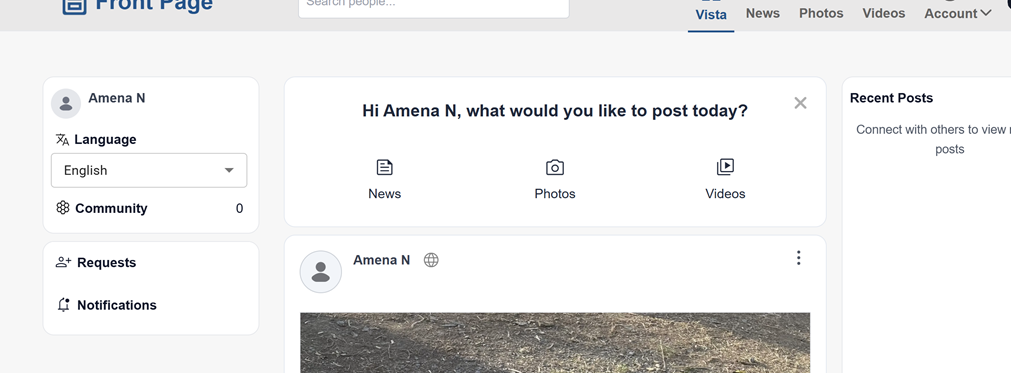
Vista – View the main
feed
feeds only.NewsCommunity – ViewnewscommunitycontentPhotos– Browse photo postsVideos– Watch video contentAccount – Access profile and account
options
Click on any of these options to open thatthe section.
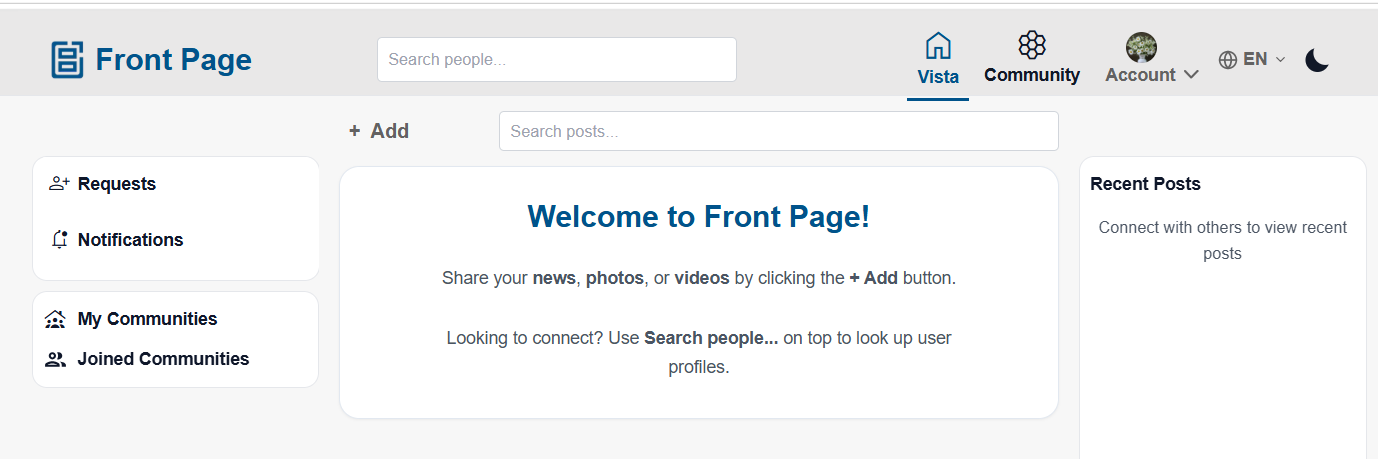
Search
Users can search for people or posts using the search bar.
Steps:
Click
onthe Search bar at the top.Enter a name or keyword.
Select a result to open it.
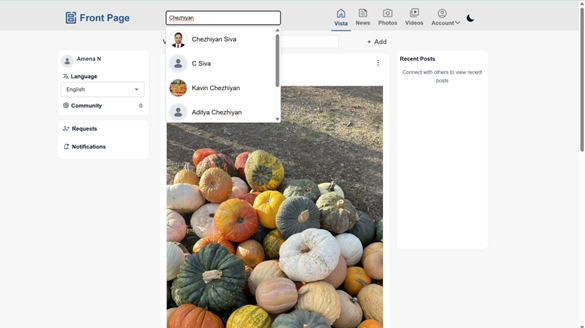
Left Sidebar
The left sidebar provides quick access to usercommunities, informationrequests, and additional options.notifications.
Users can view:
- Requests
View connection requests sent by other users and accept or reject them.Profile–name - Notifications
View notifications for posts shared by other users and community updates.Language–selection - My
Communitycommunityinformation–
The default system-generated community created using the user’s first name.
Users can also create additional communities that other users can join to view community posts. - Joined
CommunityRequests– - the
list of communities joined by the user.Notifications
Displays
Creating Content
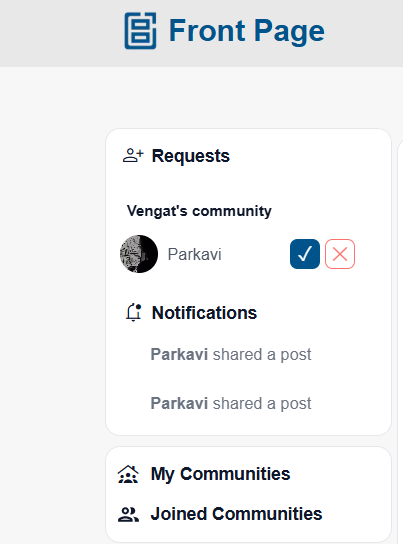
Users can create new content using the + Add option.
Steps:
Click + Add at the top.
- Users
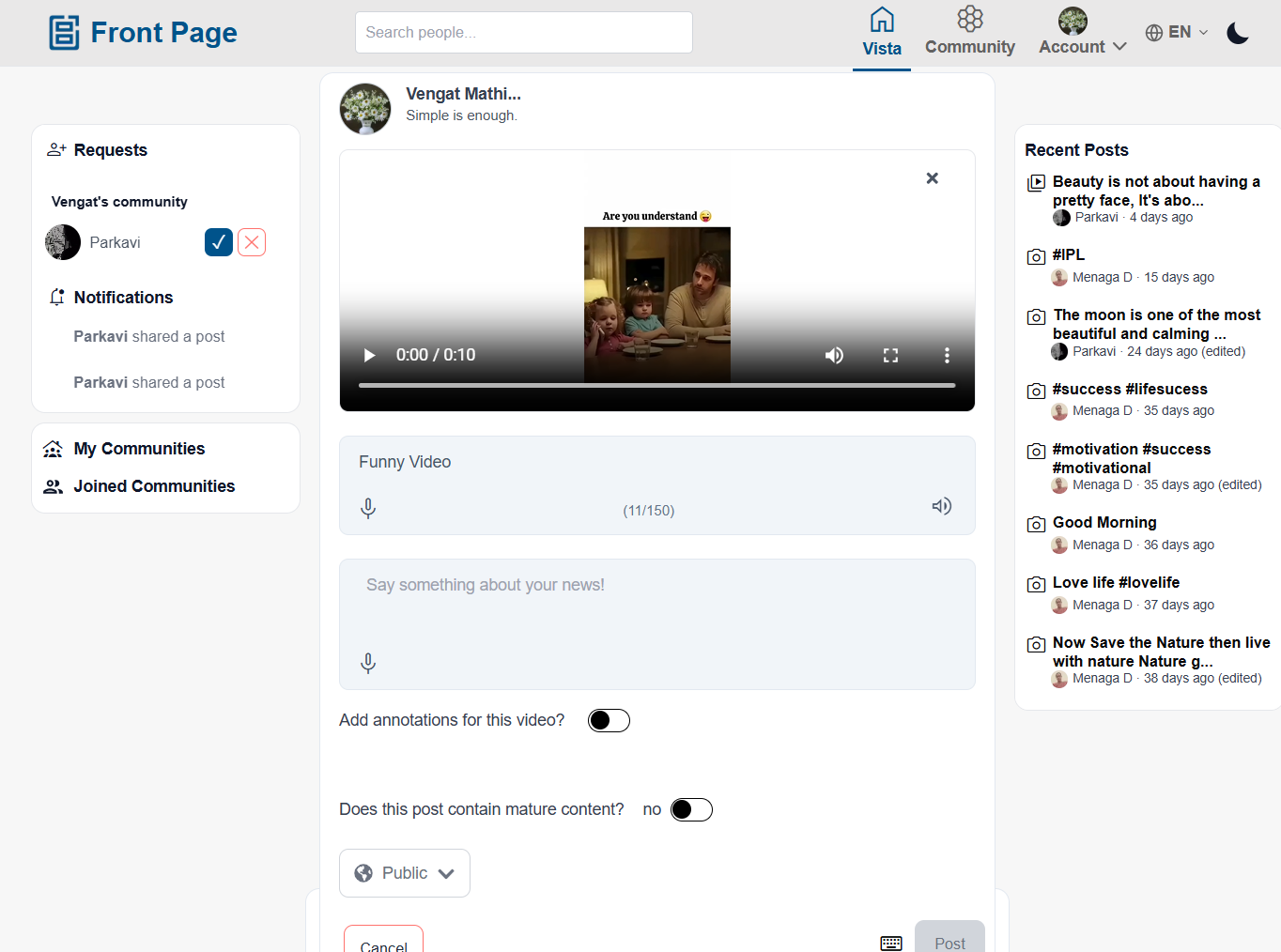
can create: Photo posts, Video posts and Text-only posts (News)
- Add a title. (Maximum 150 characters)
- Add a description. (Maximum 1050 characters)
- Add #hashtags in the description if needed.
- Choose post visibility: Public, Community → Select a community. Only members of the selected community can view the post in their feeds and Private
- Upload: Up to 6 images, or 1 video
- If video is selected:
- Annotation toggle is available
- Select the
typevideooflanguage
Enter“Post” to publish your content.
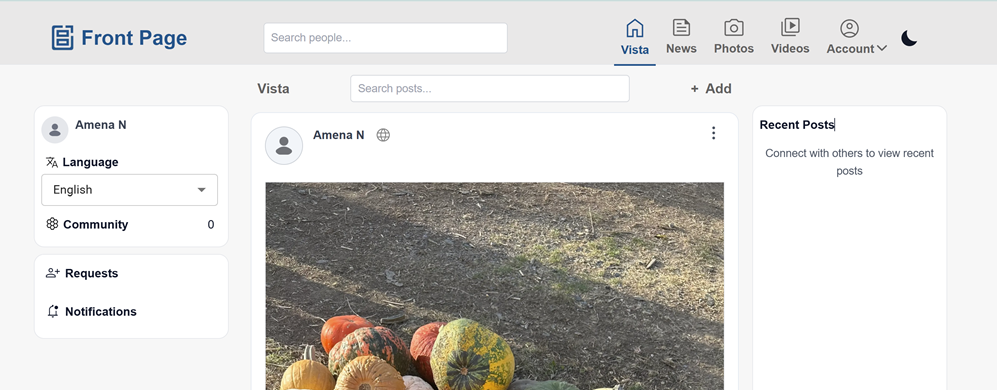
Viewing Posts
The main content area displays posts from users and communities.
Users can:
Scroll to view posts
- React
Interacttowith content - Add
Opencomments and replies - Share posts
forwith:moreIn-appdetailsusers and External applications