
Navigation – Web
Main Navigation Bar
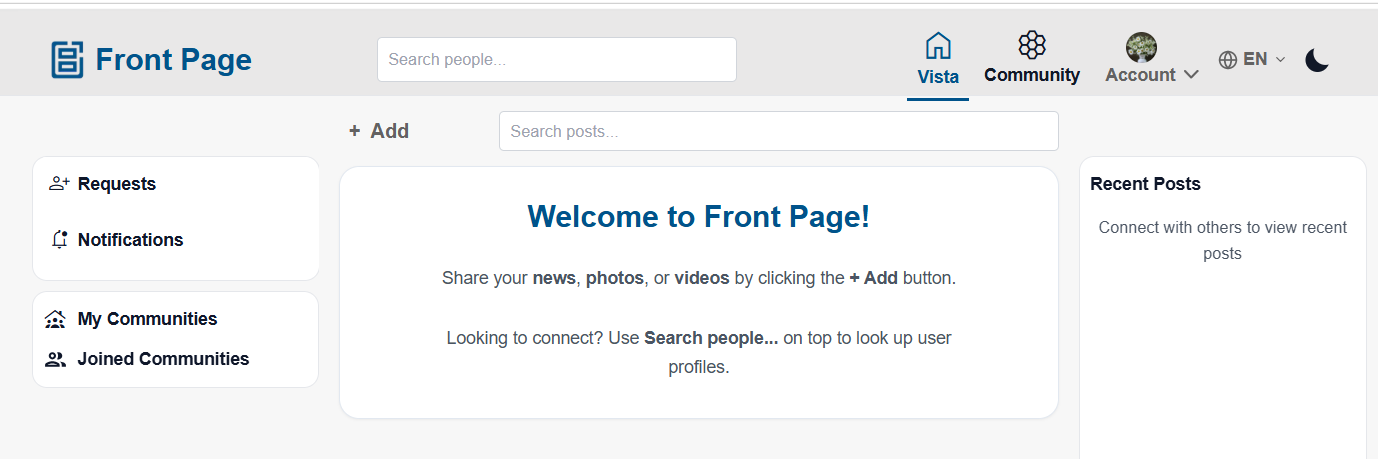
Users can access:
- Vista – View the main feed.
- Community – View community feeds only.
- Account – Access profile and account options.
Click any of these options to open the section.
Search
Users can search for people or posts using the search bar.
Steps:
- Click the Search bar at the top.
- Enter a name or keyword.
- Select a result to open it.
Left Sidebar
Users can view:
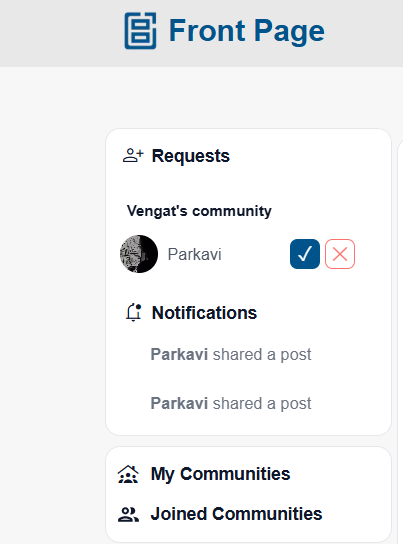
- Requests – View connection requests sent by other users and accept or reject them.
- Notifications – View notifications for posts shared by other users and community updates.
- My community –
The default system-generated community created using the user’s first name.
Users can also create additional communities that other users can join to view community posts. - Joined Community –
Displays the list of communities joined by the user.
Creating Content
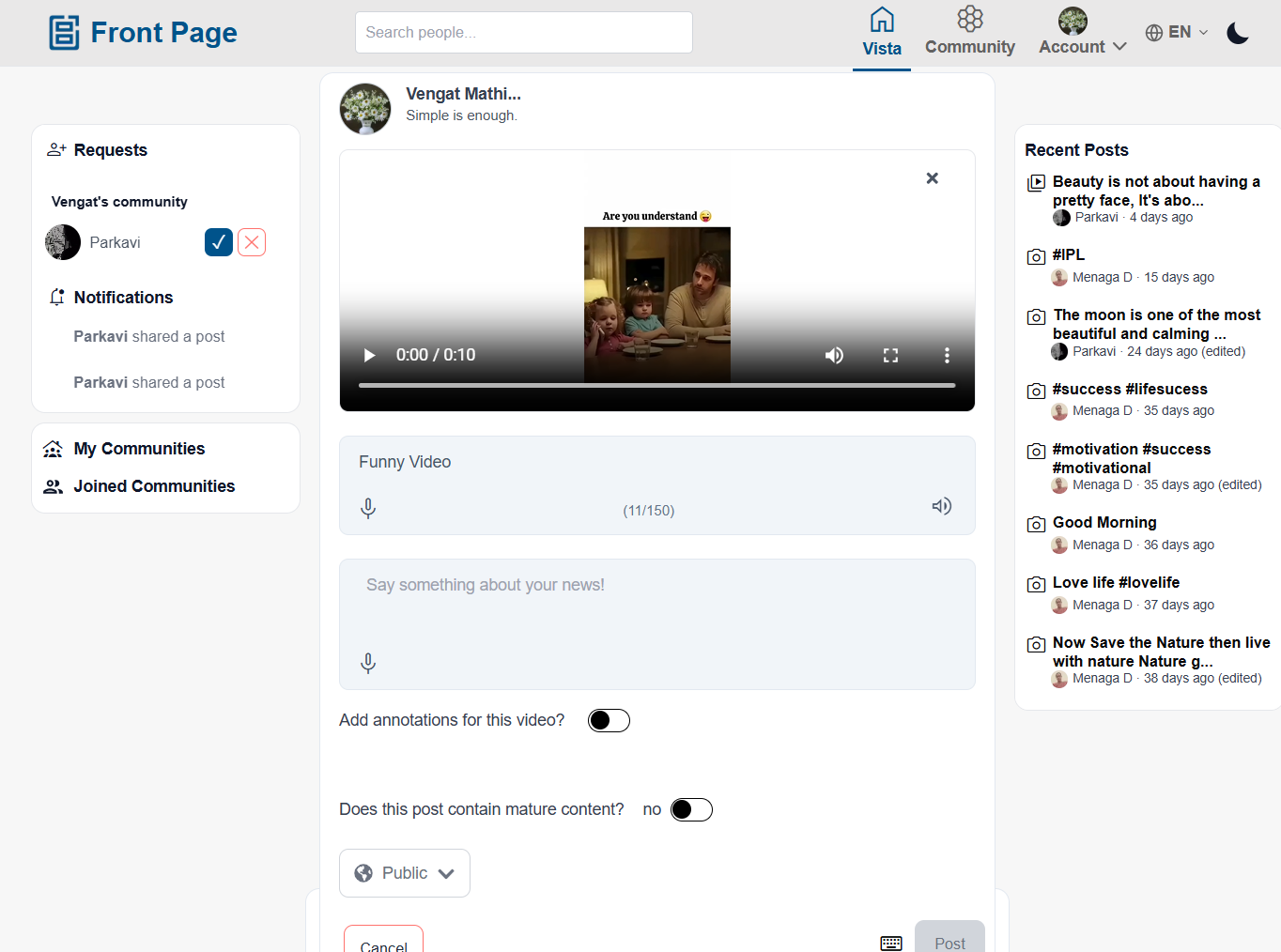
Users can create new content using the + Add option.
Steps:
- Click + Add at the top.
- Users can create: Photo posts, Video posts and Text-only posts (News)
- Add a title. (Maximum 150 characters)
- Add a description. (Maximum 1050 characters)
- Add #hashtags in the description if needed.
- Choose post visibility: Public, Community → Select a community. Only members of the selected community can view the post in their feeds and Private
- Upload: Up to 6 images, or 1 video
- If video is selected:
- Annotation toggle is available
- Select the video language
Vista Page
- Click Vista from the top navigation bar.
- View:
- Public posts
- Community posts from joined communities
- Scroll to explore posts.
- Users can interact with posts by:
- Reacting
- Commenting
- Replying
- Sharing
Community Page
- Click or tap Community from navigation.
- Scroll to see community posts.
- Use Filter to select a specific community.
- View posts only from selected community.
- Create and share posts within communities.
Hide and Report Posts
Users can manage posts using Hide and Report options.
Hide Post
- Open the post.
- Click the three-dot menu (⋮).
- Select Hide.
Result:
- The post will not appear in Vista, Community, or Recent feeds.
- Hidden posts can be viewed and restored from the Profile page.
Report Post
- Open the post.
- Click the three-dot menu (⋮).
- Select Report.
- Choose a reason and submit.
Result:
- The post is reported for review.
- Only signed-in users can report posts.
Profile Page
- Tap the Profile icon from navigation.
- View your profile details and posts.
Edit Profile
Users can:
- Update profile image
- Change display name
- Edit caption and personal details
My Posts
Users can:
- View all created posts
- Edit posts
- Delete posts
Users can:
Account Settings
Users can:
- Deactivate account
- Delete account
- Verify account (selfie verification)
Deactivate Account
- Go to Profile.
- Select Deactivate Account
Result:
- Account becomes hidden from other users
- User data is temporarily disabled
- User can reactivate later
Delete Account
- Go to Profile.
- Select Delete Account
- Confirm deletion
Result:
- Account is permanently deleted
- All posts, comments, and data are removed
- Cannot be restored
Verify User
- Open Profile
- Select Verify Account
- Complete selfie verification
Result:
- Account is verified after successful validation
Viewing Posts
The main content area displays posts from users and communities.
Users can:
- Scroll to view posts
- React to posts
- Add comments and replies
- Share posts with: In-app users and External applications