Start Using Front Page in 5 Minutes
Step 1 — Install the app
Android Play Store
Android Play Store – Instructions
1) In Android Play Store, search for “Front Page Social”.
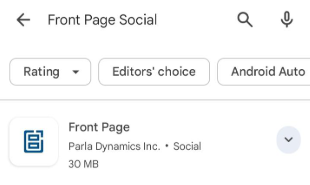
2) Select Front Page – Social from Parla Dynamics Inc.
3) Install the app.
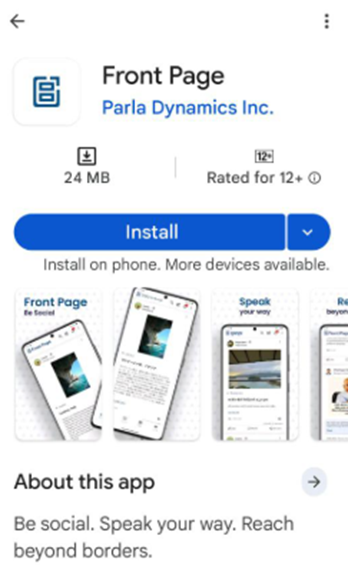
Apple App Store
Apple App Store – Instructions
1) In Apple App Store, search for “Front Page Social”.
2) Select Front Page – Social from Parla Dynamics Inc.
3) Install the app
Step 2 — Create Your Account
Android Play Store
1) After installing the app, when you open, a “Sign In” button is shown, click the button.
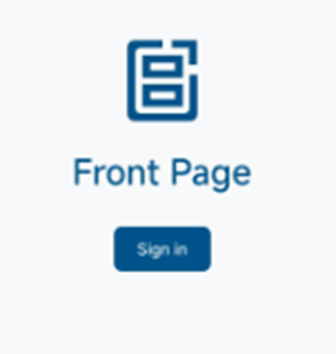
2) A new page opens to allow you to sign in or sign up
3) Click the “Sign up" link.
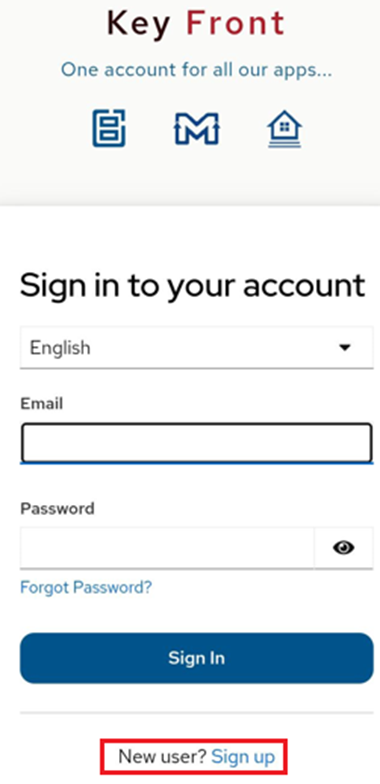
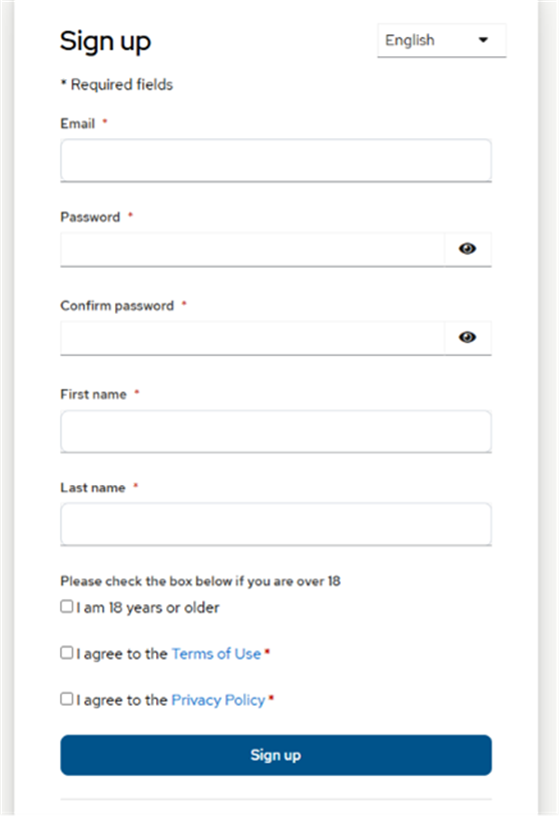
4) A new page opens, to allow you to create an account.
5) Enter a valid email address (a verification email is sent to this address).
6) Enter other fields to create a new account.
7) Once the email is verified.
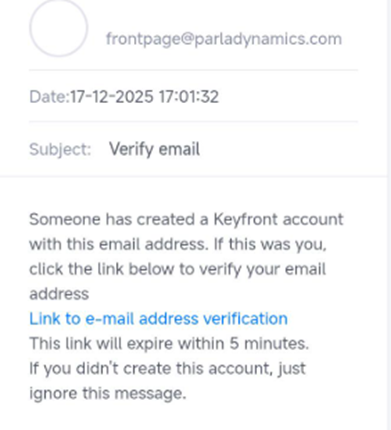
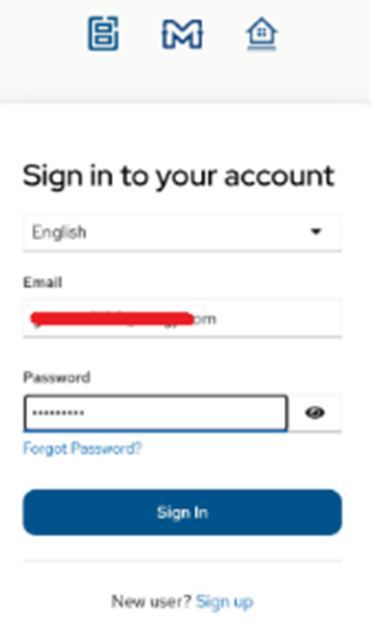
8) Open the app again, and click the “Sign In” button, enter the email address and password to access the application.
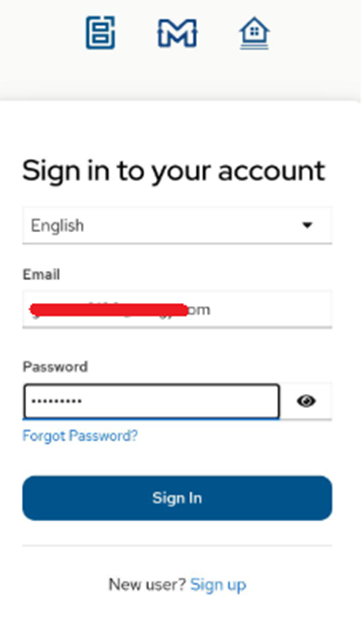
Apple App Store
1) After installing the app, when you open, a “Sign In” button is shown, click that button.

2) A new page opens to allow you to sign in or sign up
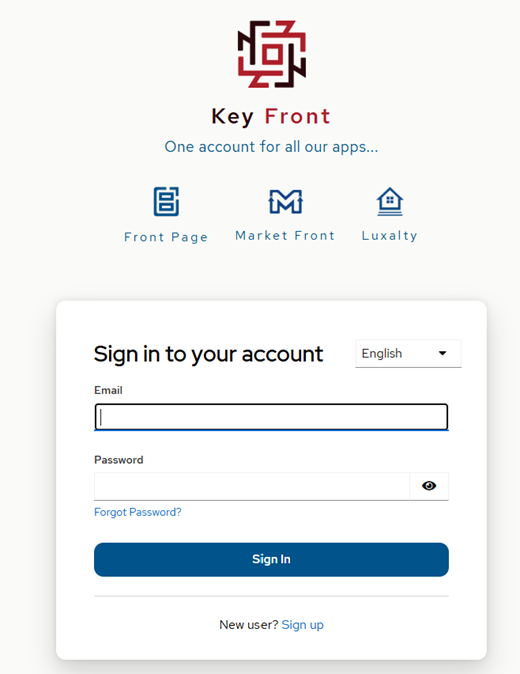
3) Click the “Sign up" link.
4) A new page opens, allowing you to create an account.
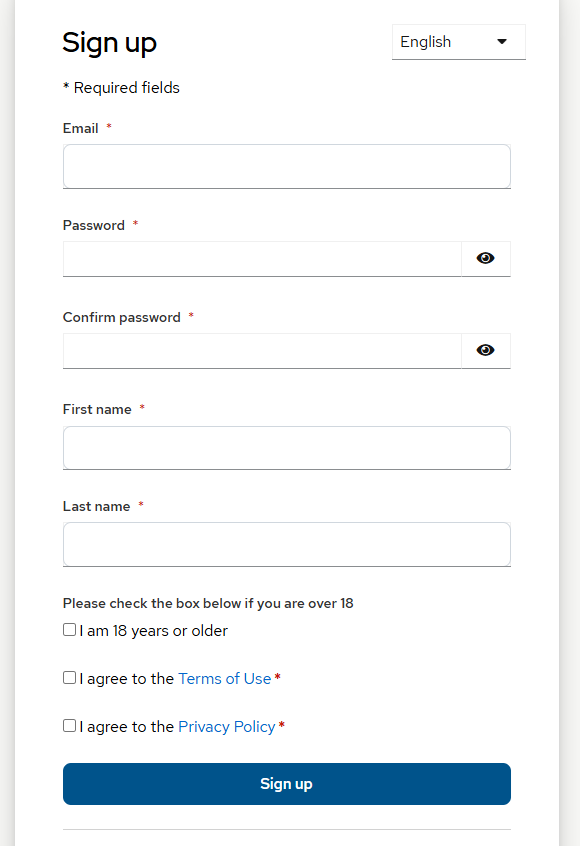
5) Enter a valid email address (a verification email is sent to this address).
6) Enter other fields to create a new account.
7) Once the email is verified.
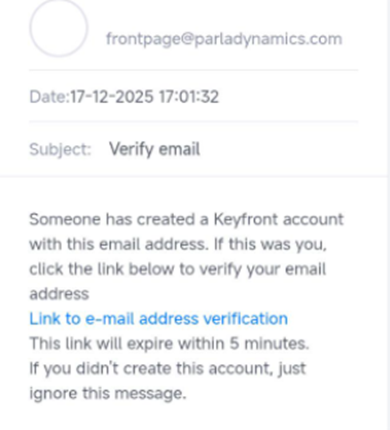
8) Open the app again, and click the “Sign In” button, enter the email address and password to access the application.
Step 3 — Choose Your Language
Front Page Mobile Application (Android or iPhone)
Built-in Mobile Keyboard
To enable Hindi language on mobile devices:
For Android:
● Open the keyboard settings.
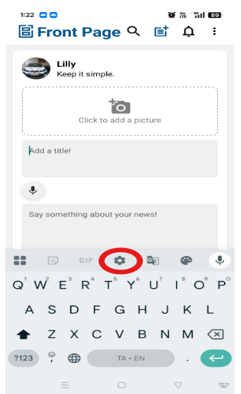
● Tap on Languages to view the list of currently selected languages.
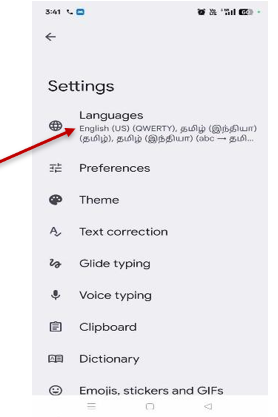
● Tap +Add Keyboard and select Hindi from the list.
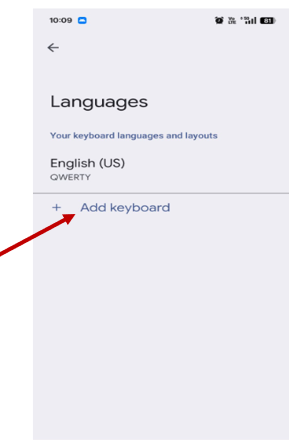
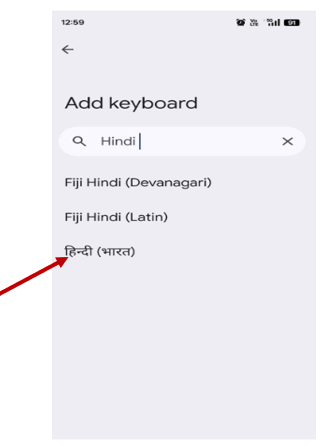
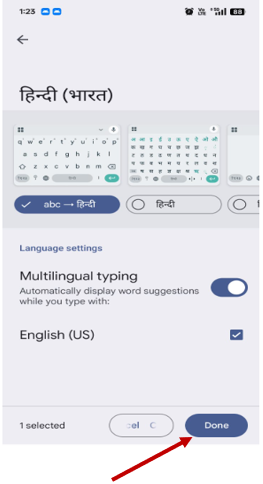
● Choose your preferred keyboard layout from the available options, then click Done.
Step 4 — Connect with Global Communities
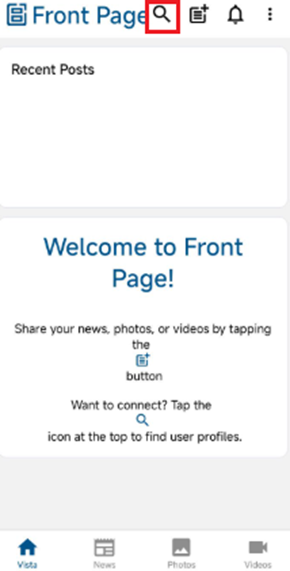
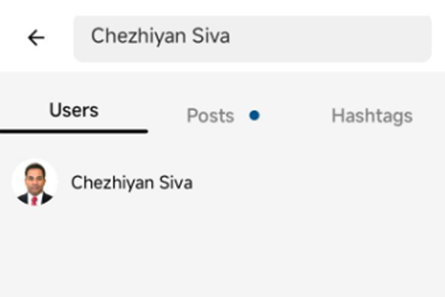
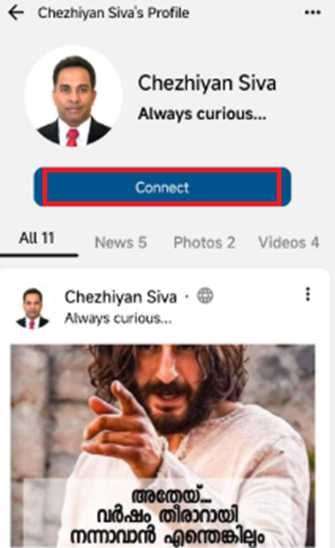
1) On top, click the search icon ( ) and search for “Chezhiyan Siva”, you can view Chezhiyan’s profile. Click “Connect” to join Chezhiyan’s community.
Step 5 — Update Your Profile
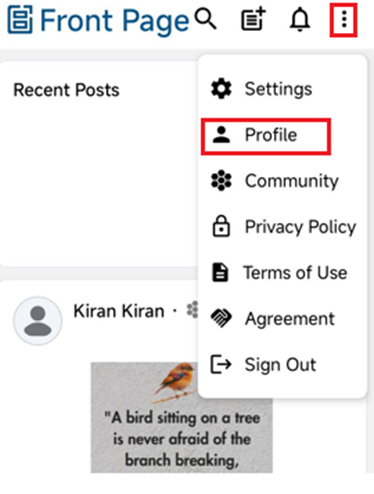
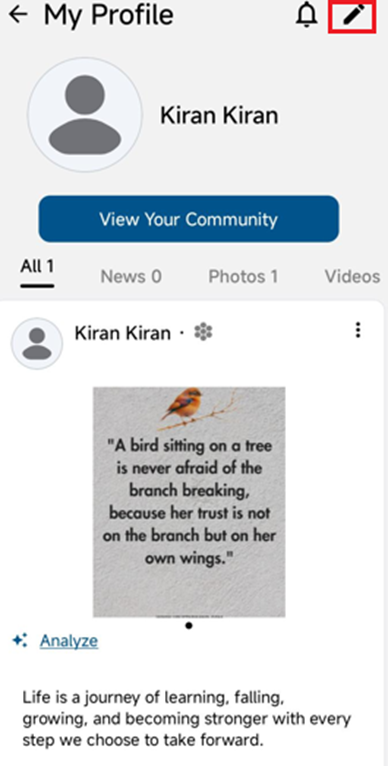
1) On the top-right side, click the "⋮" (ellipsis) menu. Select "Profile." You can see your own posts here.
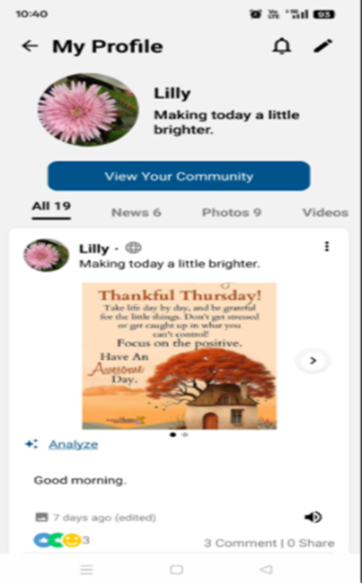
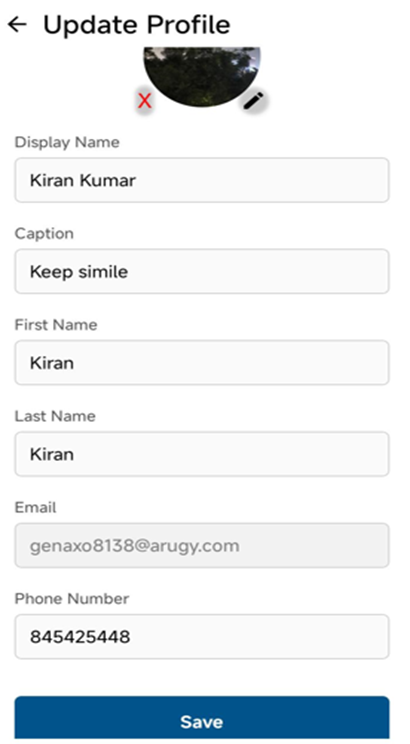
2) Click the "Edit" icon to edit your "profile image, name, caption, and other details".
Step 6 — Create Your First Post
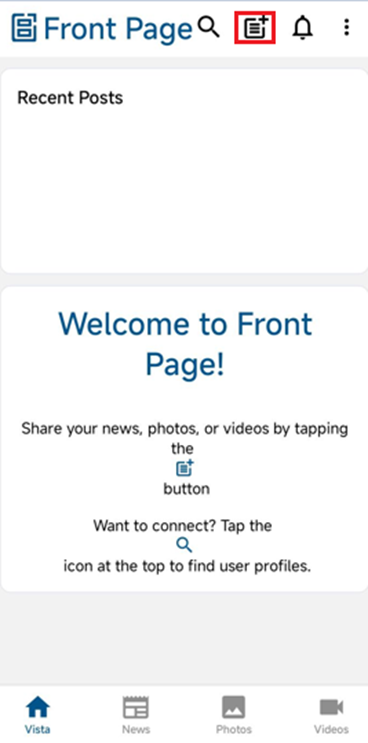
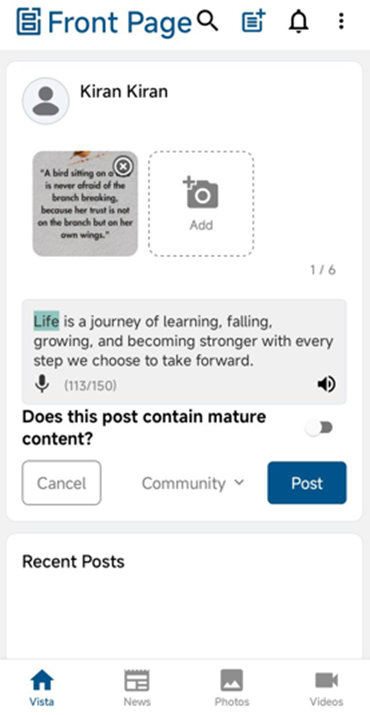
1) You can post your own news, photos, and videos, and start your own community.