
Start Using Front Page in 5 Minutes
Step 1 — Install the app
Android Play Store
Android Play Store – Instructions
1) In Android Play Store, search for “Front Page Social”.
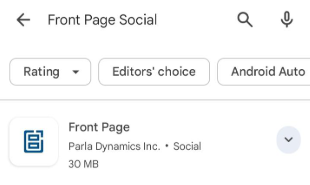
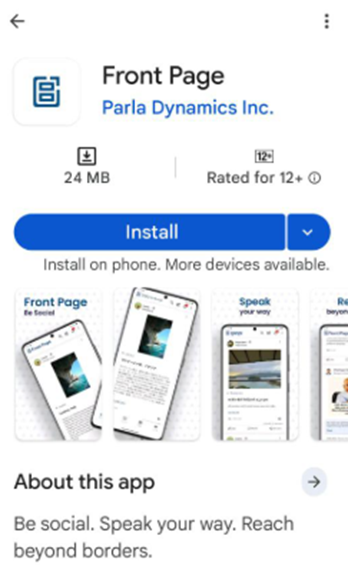
2) Select Front Page – Social from Parla Dynamics Inc.
3) Install the app.
Apple App Store
Apple App Store – Instructions
1) In Apple App Store, search for “Front Page Social”.
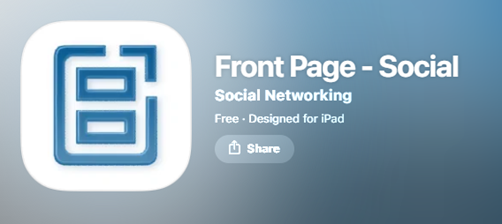
2) Select Front Page – Social from Parla Dynamics Inc.
3) Install the app
Step 2 — Create Your Account
Android Play Store
1) After installing the app, when you open, a “Sign In” button is shown, click the button.
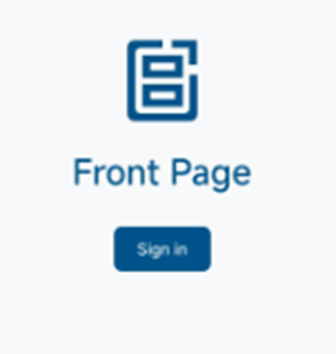
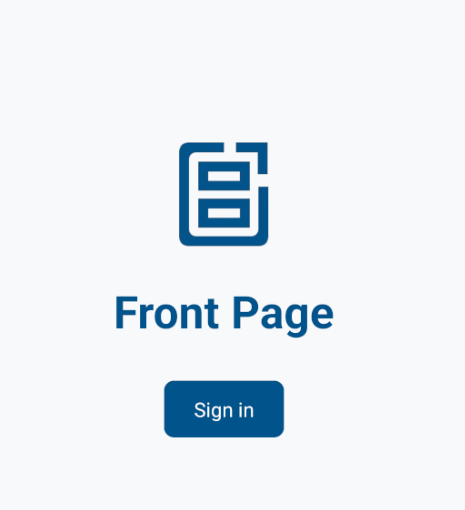
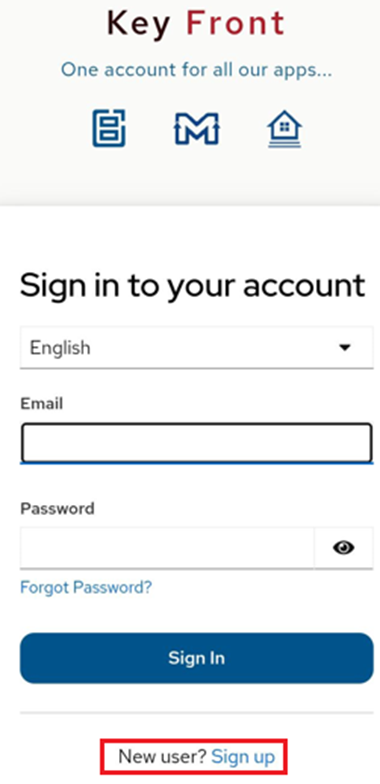
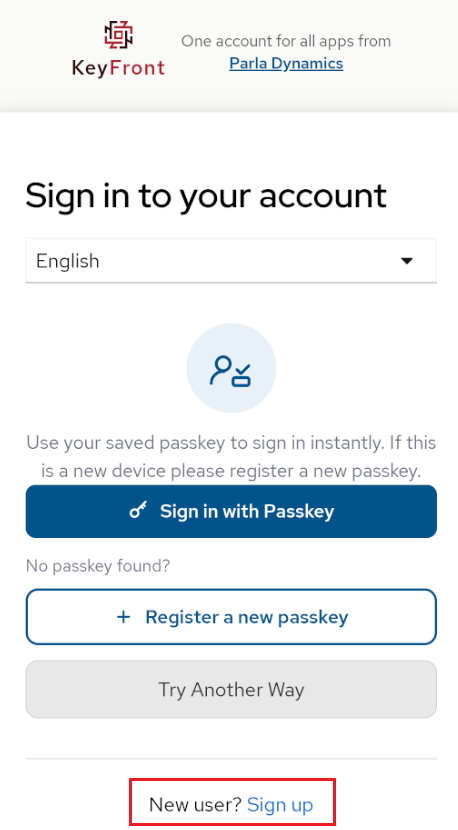
2) A new page opens toallowing allow youusers to signnavigate to the Sign in or signSign-Up uppage.
3) Click the “Sign up" link.
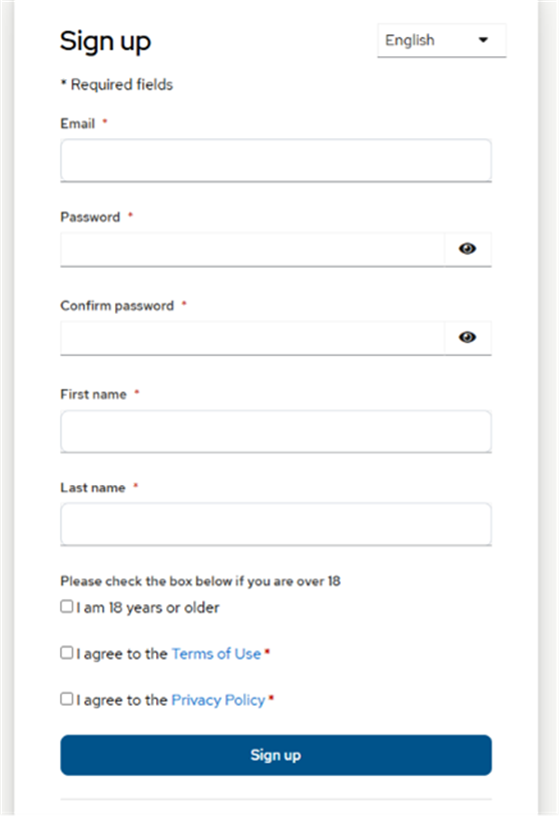
4) A new page opens, to allow you to create an account.
5) Enter a valid email address (a verification email is sent to this address).
6) Enter other fields to create a new account.
7) Accept the Privacy Policy and Terms of Use.
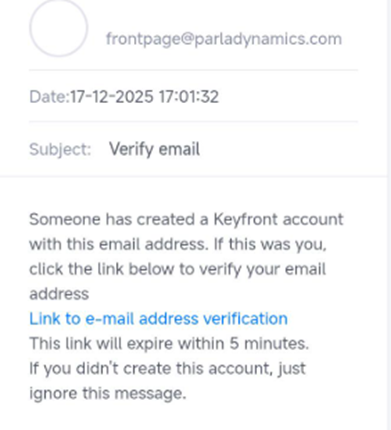
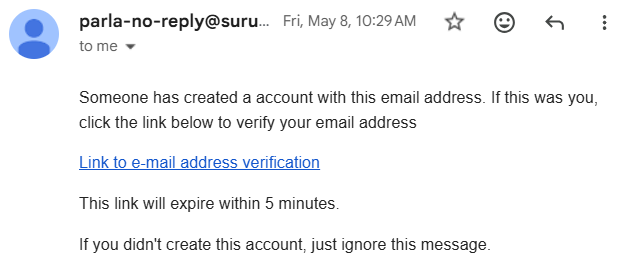
8) Verify your email address using the verification email.
7)9) Once the email is verified.
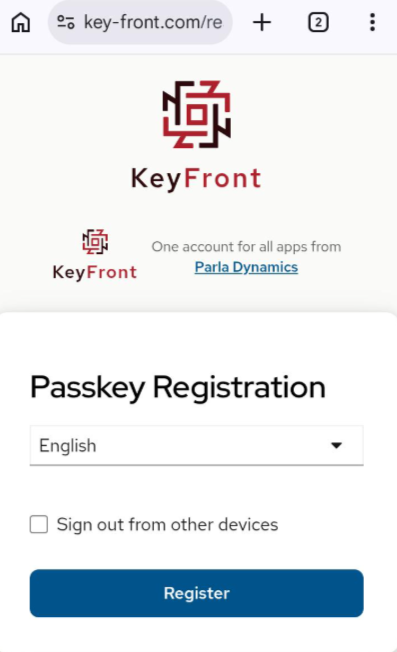
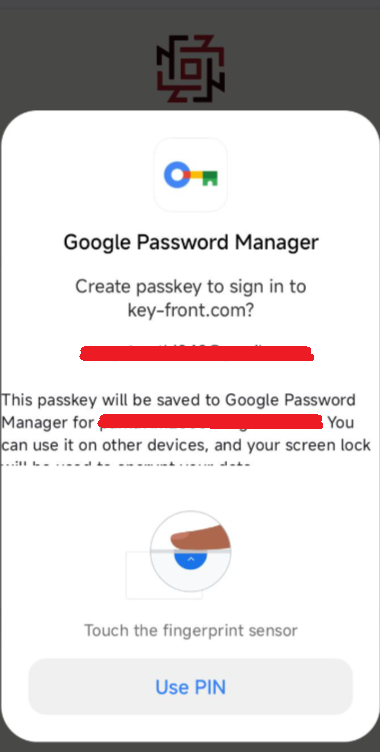
10) Register your passkey.
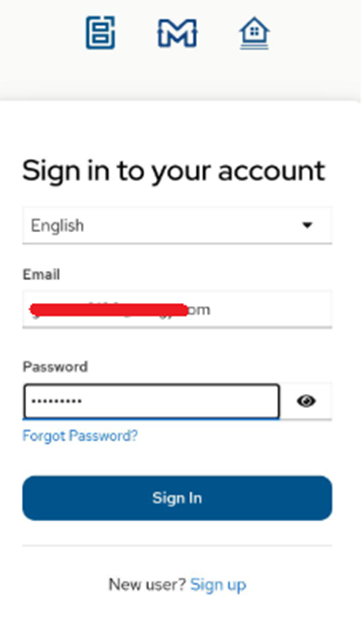
8)11) Open the app again, and click the “Sign In” button, enterSign in using: Email and password, or Saved passkey
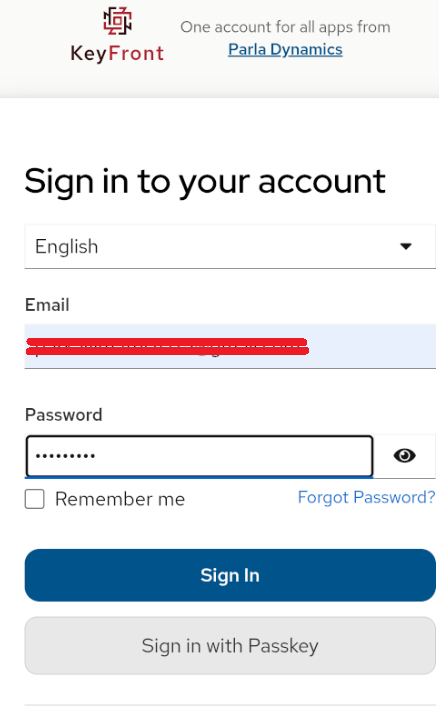
12) After signing in for the emailfirst addresstime, andthe passwordEULA Agreement page is displayed.
13) Click “Agree” to accesscontinue using the application.
Apple App Store
1) After installing the app, when you open, a “Sign In” button is shown, click that button.
2) A new page opens to allow you to sign in or sign up
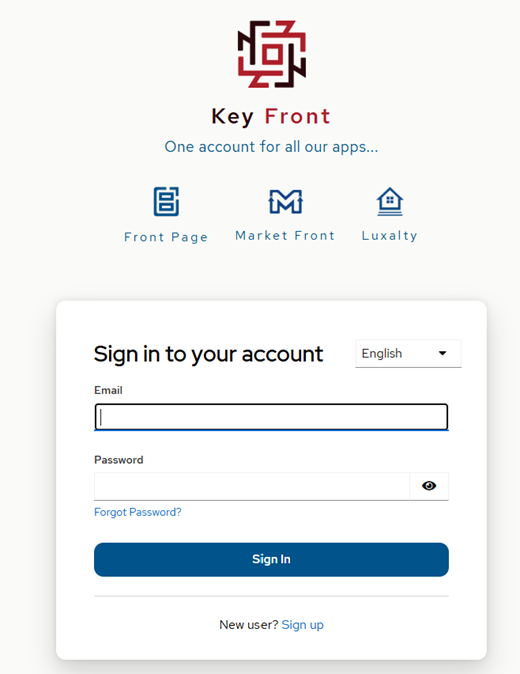
3) Click the “Sign up" link.
4) A new page opens, allowing you to create an account.
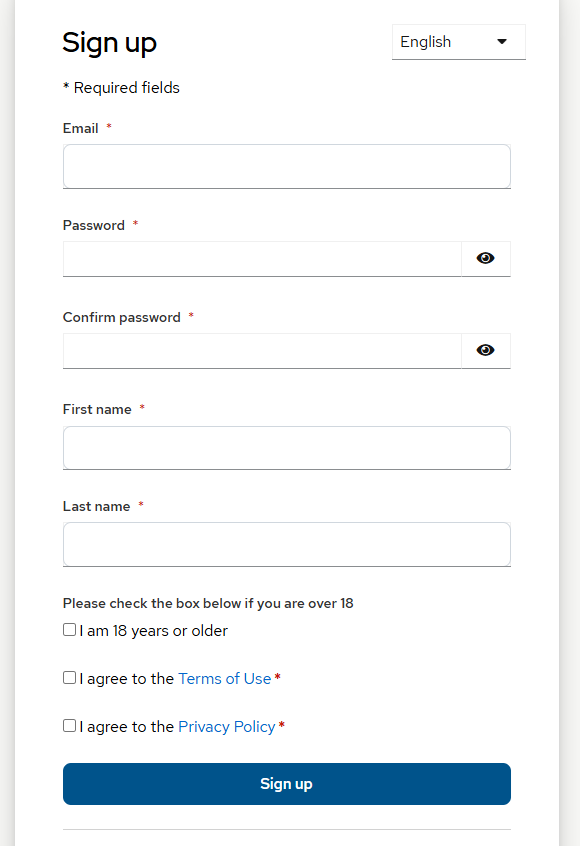
5) Enter a valid email address (a verification email is sent to this address).
6) Enter other fields to create a new account.
7) Once the email is verified.
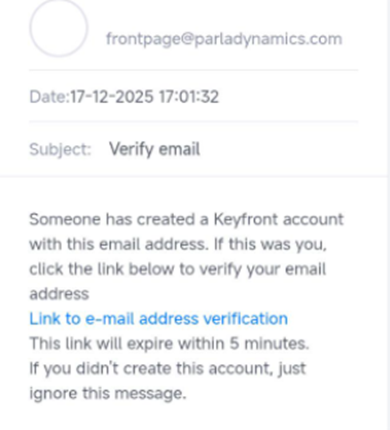
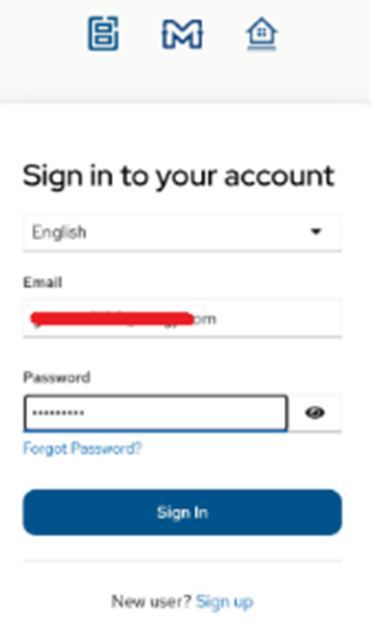
8) Open the app again, and click the “Sign In” button, enter the email address and password to access the application.
Step 3 — Choose Your Language
Front Page Mobile Application (Android or iPhone)
Built-in Mobile Keyboard
To enable Hindi language on mobile devices:
For Android:
●1) Open the keyboard settings.
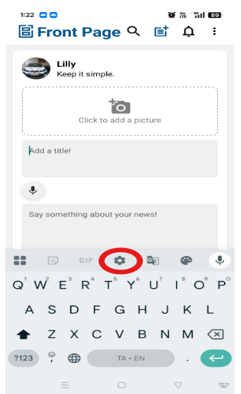
●2) Tap on Languages to view the list of currently selected languages.
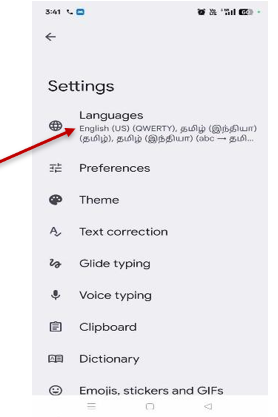
●3) Tap +Add Keyboard and select Hindi from the list.
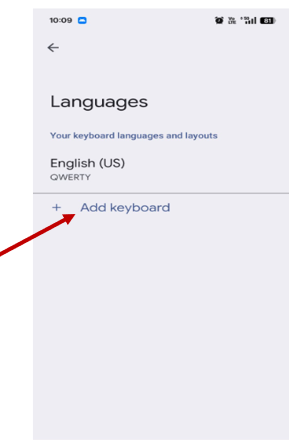
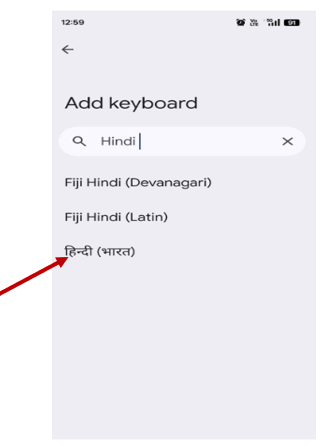
4)
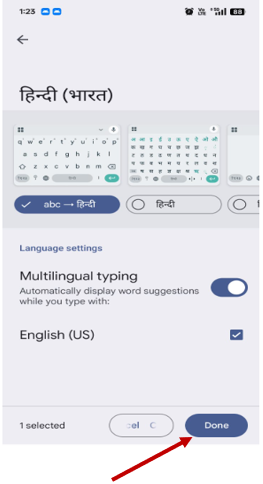
● Choose your preferred keyboard layout from the available options, then click Done.
Step 4 — Connect with Global Communities
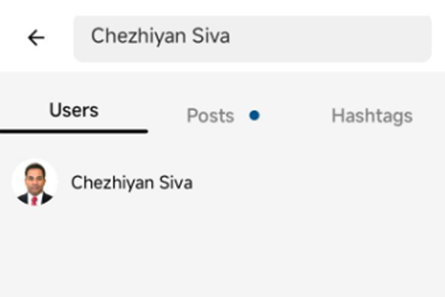
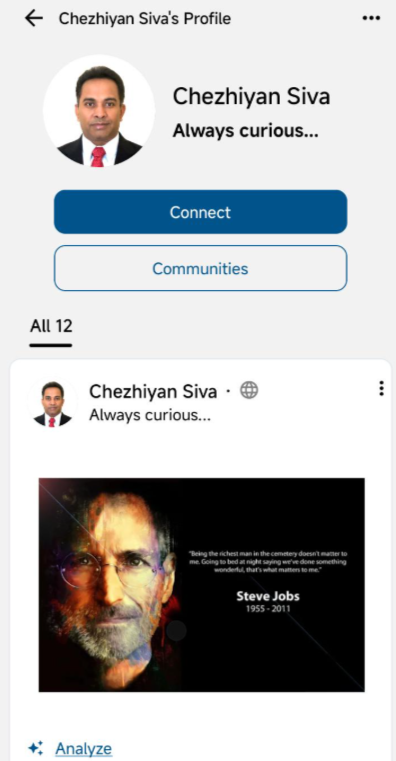
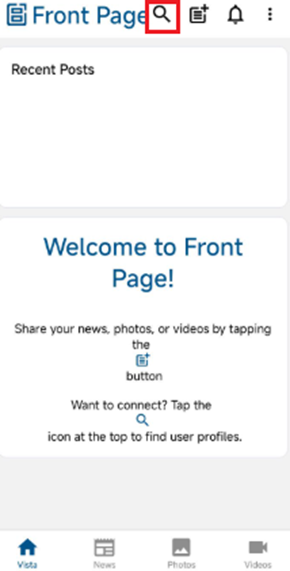
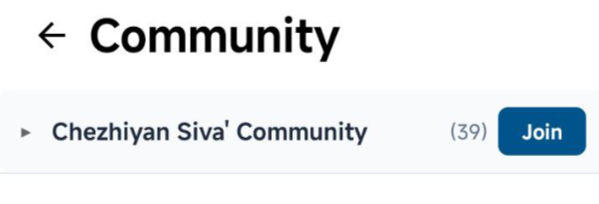
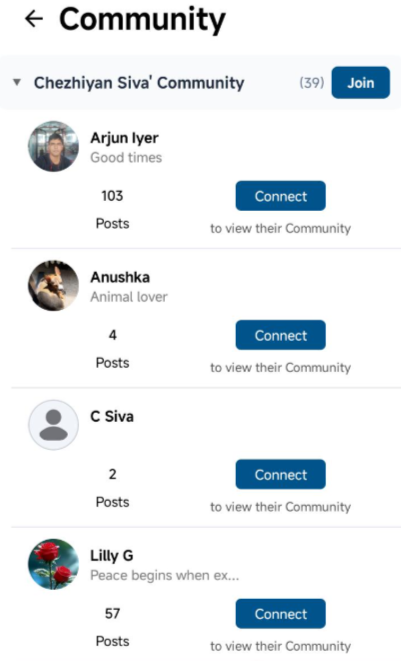
1) On top, click the search icon ( ) and search for “Chezhiyan Siva”, you can view Chezhiyan’s profile. Click “Connect” to join Chezhiyan’s community.
2) 
3)
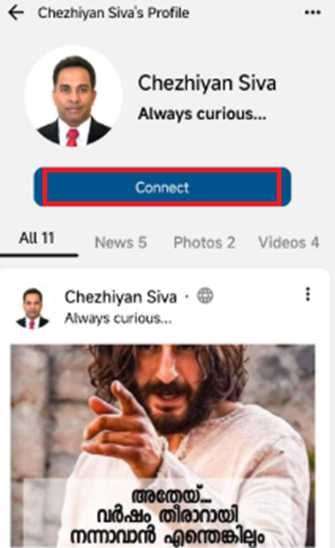
4) If another user sends you a connection request: The request appears in Notifications and once accepted, that user appears in “My Community”.
Step 5 — Update Your Profile
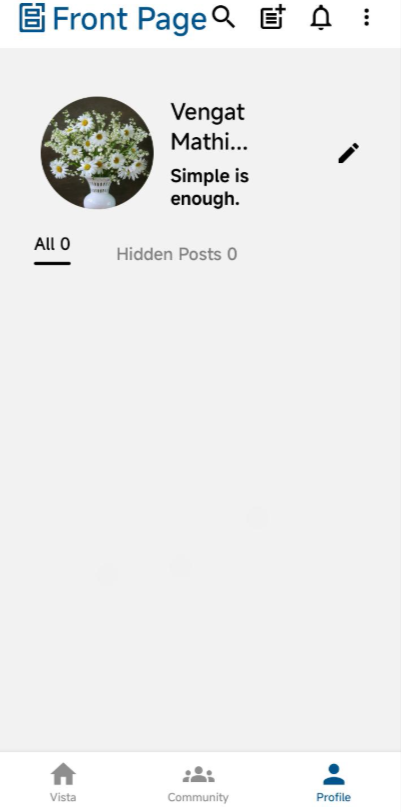
1) On the top-rightbottom side,app navigation, click the "⋮" (ellipsis) menu. Select "Profile." You can see your own posts here.
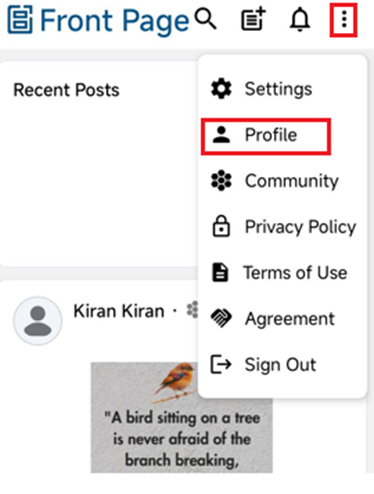
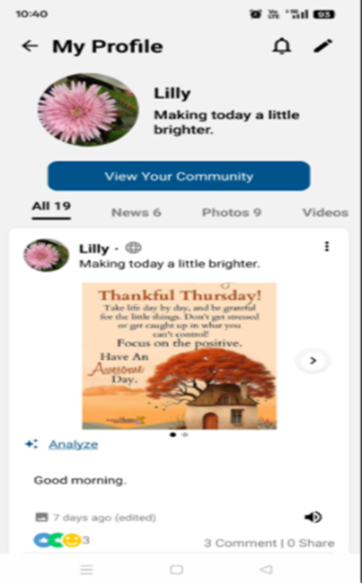
“Profile”.
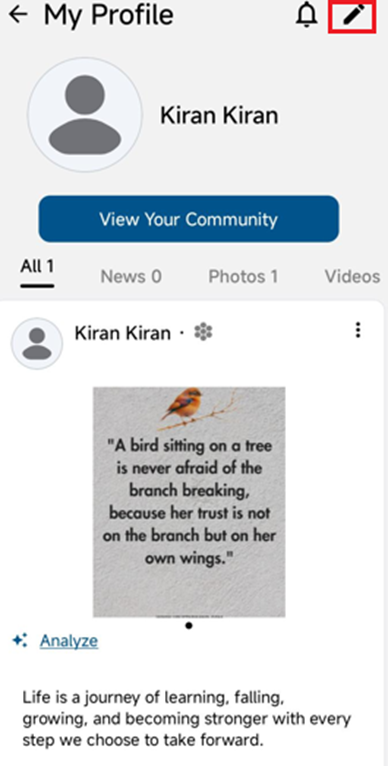
2) Your profile page opens and displays your posts.
3) Click the "Edit"“Edit” iconicon.
4) edit yourUsers "can: Add or update profile image, change display name, Update caption, edit first name, last name and otheradd details".mobile number
“Save”
to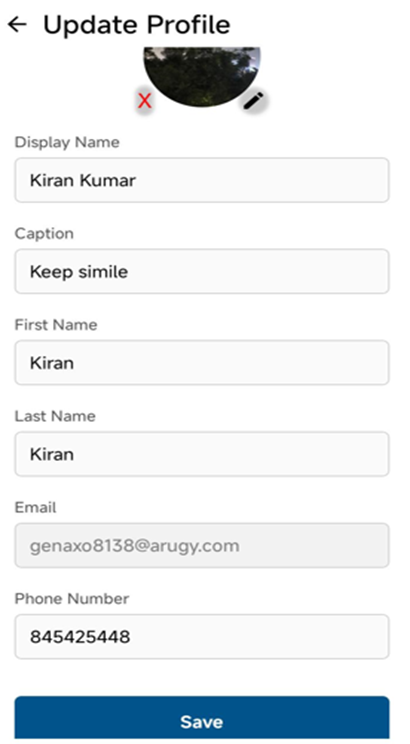
the
profile.
Step 6 — Create Your First Post
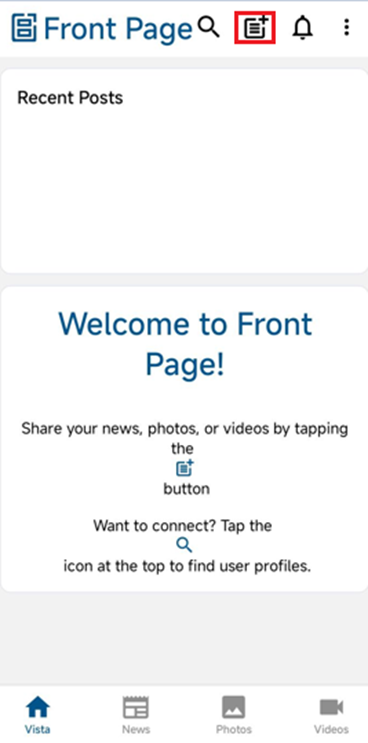
1) Click the “Create Post” icon from the top navigation. You can post your own news, photos, and videos, and start your own community.
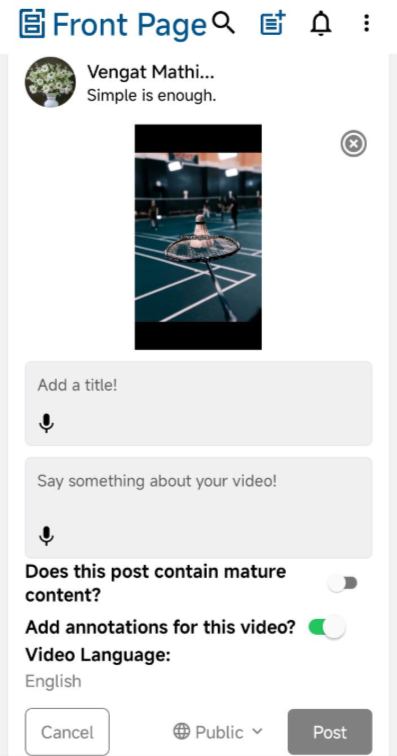
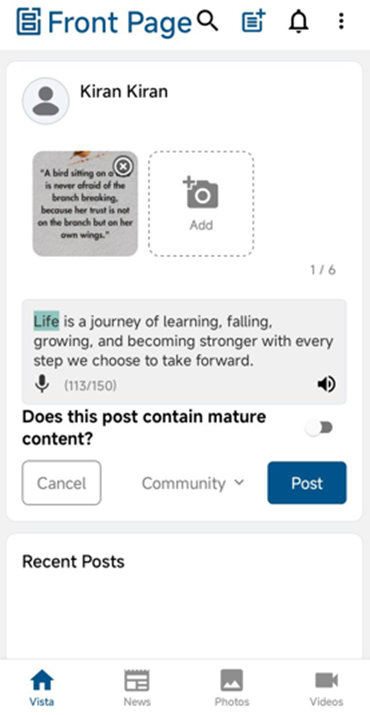
2) You can create: Photo posts, Video posts, Text-only posts.
- Add a title. (Maximum 150 characters)
- Add a description. (Maximum 1050 characters)
- Add #hashtags in the description if needed.
- Choose post visibility: Public, Community → Select a community. Only members of the selected community can view the post in their feeds, and Private
- Upload: Up to 6 images, or 1 video
- If video is selected:
Annotation toggle is available
Select the video language - If you are an adult user creating mature content, you can enable the “Mature Content” toggle. Posts marked as mature content are hidden from underage users.
- Click “Post” to publish your content.
3) Your post will appear based on the selected visibility settings and community setting.