
Navigation – Mobile
Main Navigation Menu
The mobile application provides a navigation menu that allows users to switch between different sections of the platform.
Users can access:
Vista – View the main
feed
feeds from joined and created communities.NewsCommunity – ViewnewscommunitycontentPhotosProfile –Browse photo postsVideos– Watch video content
hidden posts.Account– AccessUpdate profile details, view own posts, andaccountmanageoptions
Tap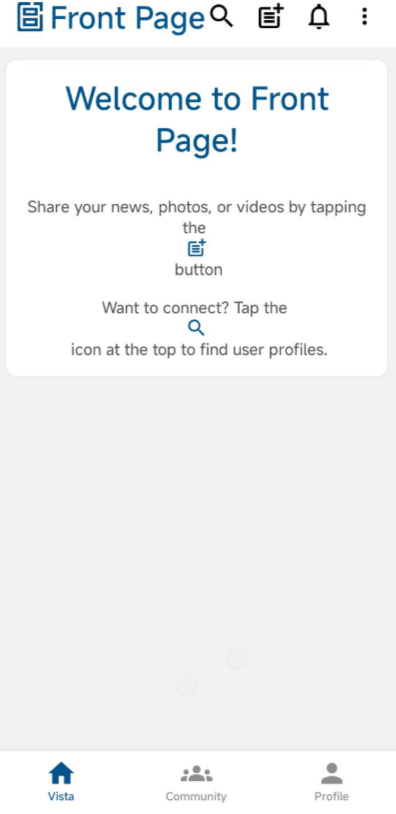
Menu optionOptions
Additional openoptions thatare section.available through the menu.
Steps:
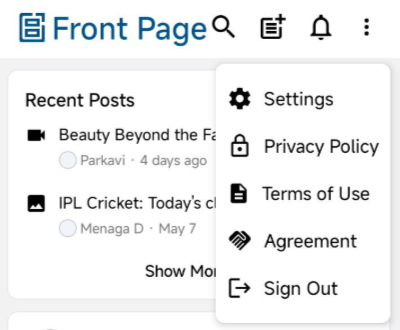
- Tap the three dot menu icon (
screenshot)☰). - Select the required option.
Available Options:
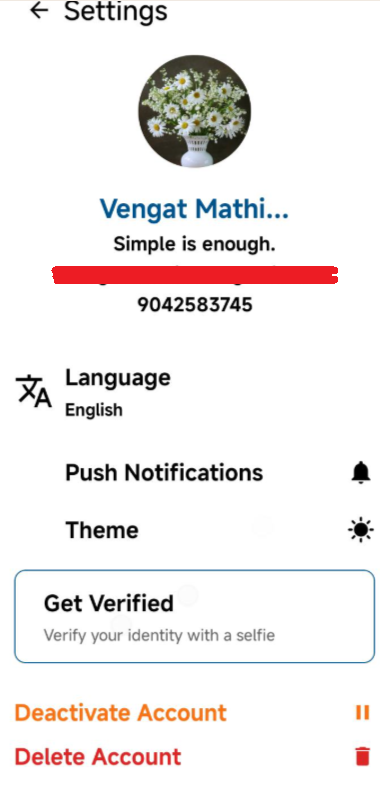
- Settings
- Change app language
- Turn push notifications on or off
- Change theme (Light or Dark mode for the Front Page app only)
- Get Verified (verify account using selfie verification)
- Deactivate account
- Delete account
- Privacy Policy
- Terms of Use
- Agreement
- Sign Out
Using the Search Function
Users can search for people or content within the app.
Steps:
Tap the Search
bar.Enter a name or
keyword in user search to search user and send connect request them.keyword.Tap a result to open it.
- Post search and hashtag search will display related keyword or hashtag posts.
(screenshot)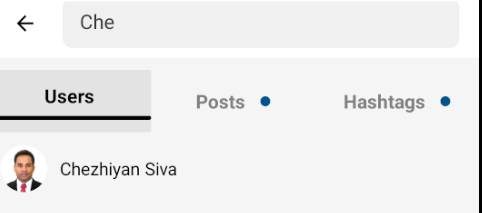
Menu Options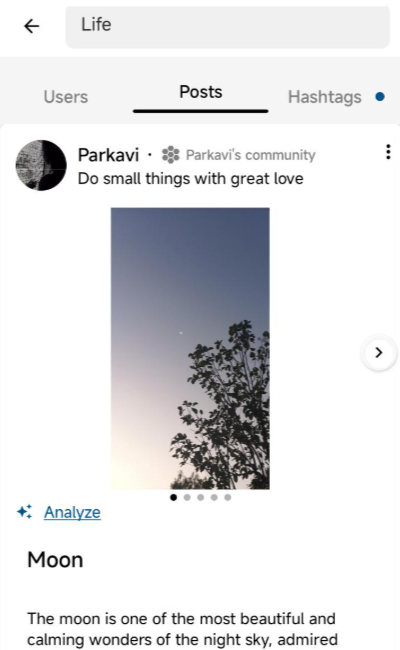
Additional options are available through the menu.
Steps:
(Screenshot)
Notifications
Users can view updates and activity through notifications.
Steps:
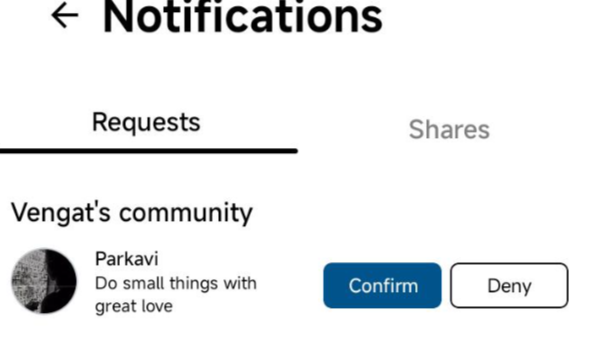
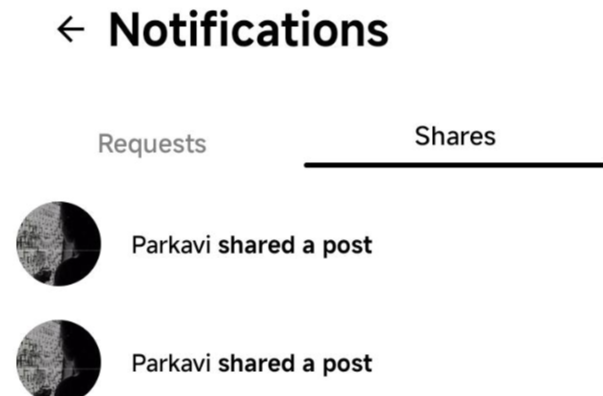
Tap the Notifications
icon.- View:
View- Connection
updates.requests - Post shares
recent - Connection
(Screenshot)
Viewing and Interacting with Posts
The main screen displays posts from users and communities.
Users can:
Scroll to view posts
Tap
onposts to open themInteract with content
Community Page
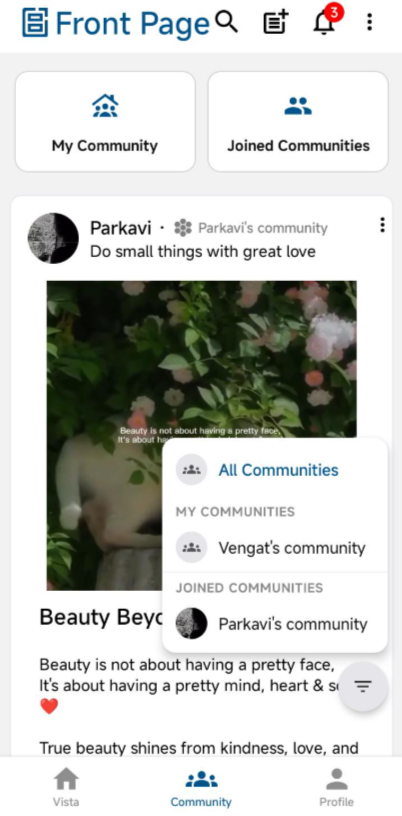
Community posts appear in this section.
Users can:
- Filter a specific community to view only that community’s posts
- Scroll to view posts
- Tap posts to open them
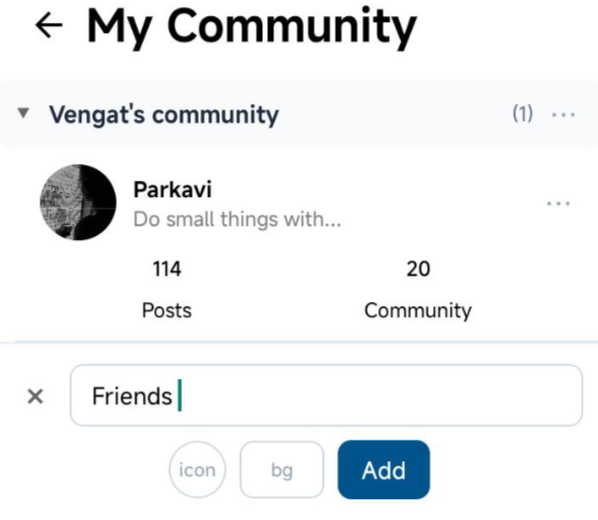
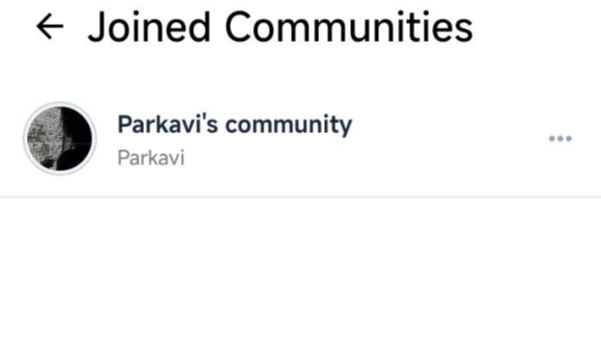
Community Sections
- My Community –
The default system-generated community created using the user’s first name.
Users can also create additional communities that other users can join to view community posts. - Joined Community –
Displays the list of communities joined by the user.
Post Interaction
Posts opened from:
- Vista
- Community
- User Profile
- Post Search
- Hashtag Search
will open the Post Detail page.

Users can:
- React to posts
- Add comments and replies
- Share posts within the app or through external applications