
Profile
Accessing Your Profile
Users can access their profile from the navigation menu.
Steps:
-
Click or tap the Account/Profile
icon.icon. -
Select
Profile.Profile. -
The profile page will open.
(Screenshot)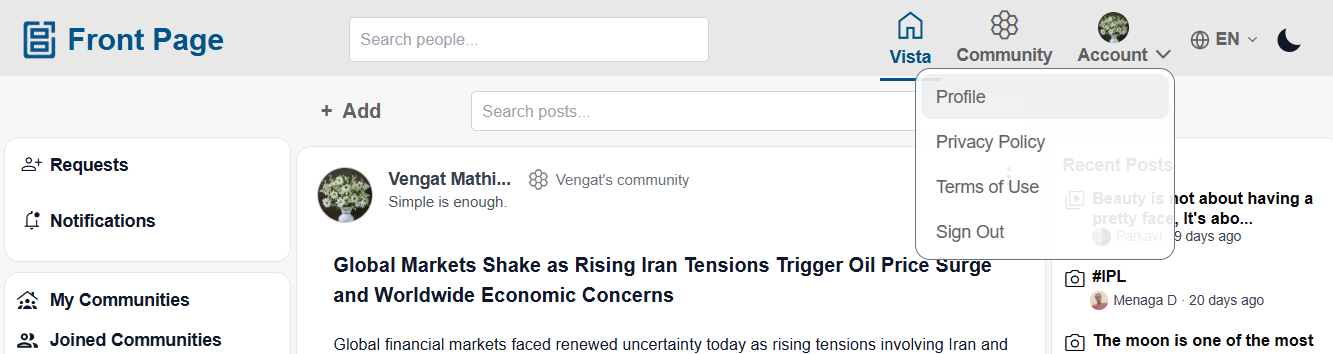
Viewing Profile Information
Users can view and manage their personal details and activity onfrom the profileProfile page.
Users can see:view:
Profile
name- Display
Profile picture Posts- First
and last nameCommunitynameactivity - Mobile number
- Registered email address
- Created posts
- Hidden posts
(Screenshot)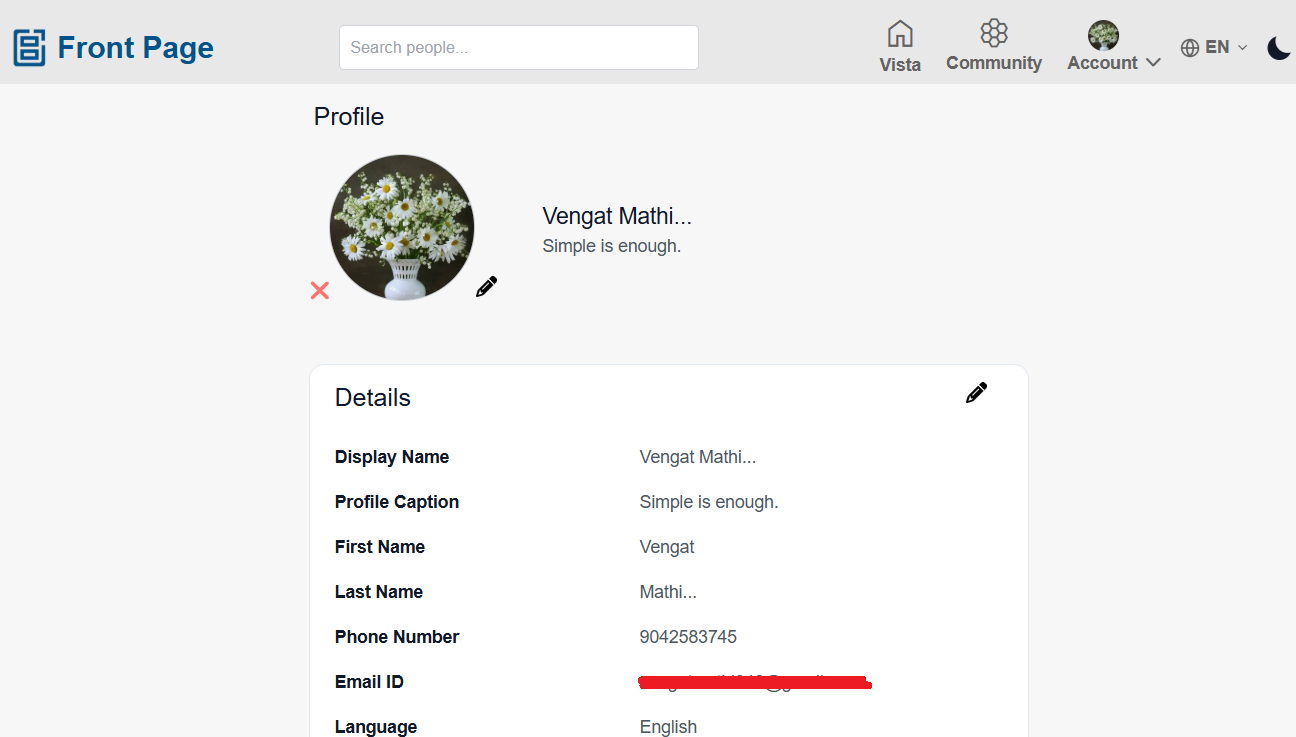
Editing Profile Information
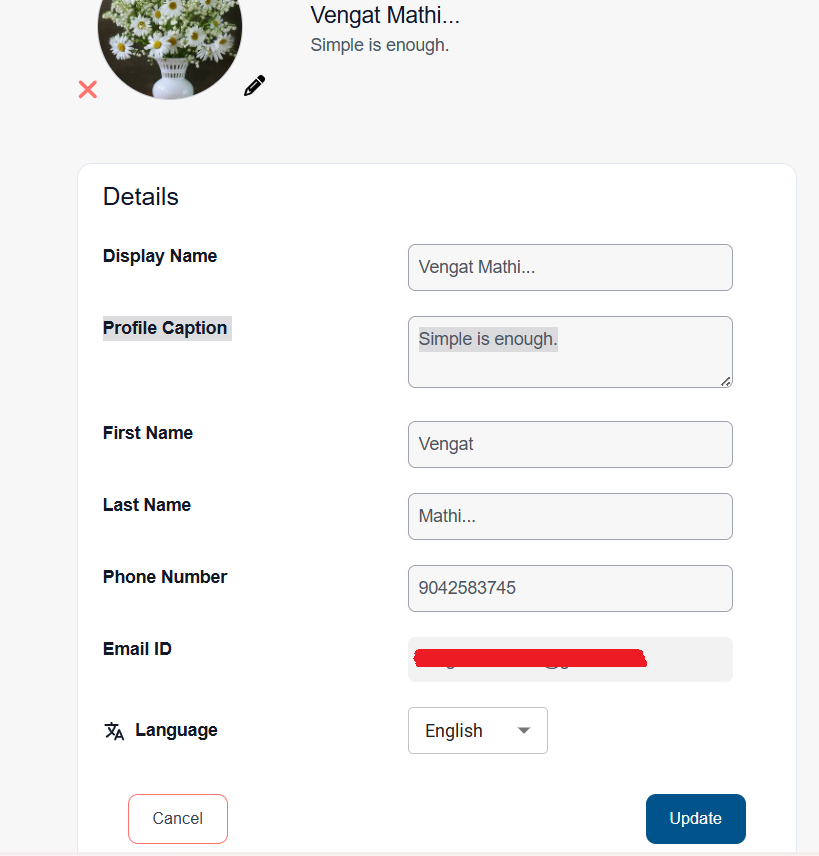
Users can update their profile details.details at any time.
Steps:
Open the Profile page.
- Click or tap the Edit Profile icon.
- Update the required information:
- Profile image
- Display name
- Caption
- First name
- Last name
- Mobile number
Click or tap
Edit ProfileUpdate/Save.Update the required information.Save the changes.
(Screenshot)Notes:
- The registered email address is view-only and cannot be edited.
- Updated profile details are reflected across the application.
Viewing Your Posts
Users can view all posts they have created.created from the Profile page.
Steps:
Open the Profile page.
Scroll to view created posts.
Click or tap a post to open
the Post Detail page.it.
(Screenshot)Users can:
- Edit posts
- Delete posts
- React, comment, and share posts
Users can manage hidden posts from the Hidden Posts section.
Steps:
- Open the Profile page.
- Navigate to the Hidden Posts section.
- View all hidden posts.
- Click or tap Unhide to restore a post.
- Vista/Home feed
- Community feed
- Recent Posts

Profile Actions
Users can perform additional actions from theirthe profile.Profile page.
Users can: