
Using the Virtual Keyboard
This page explains how to use the Virtual Keyboard in Front Page.
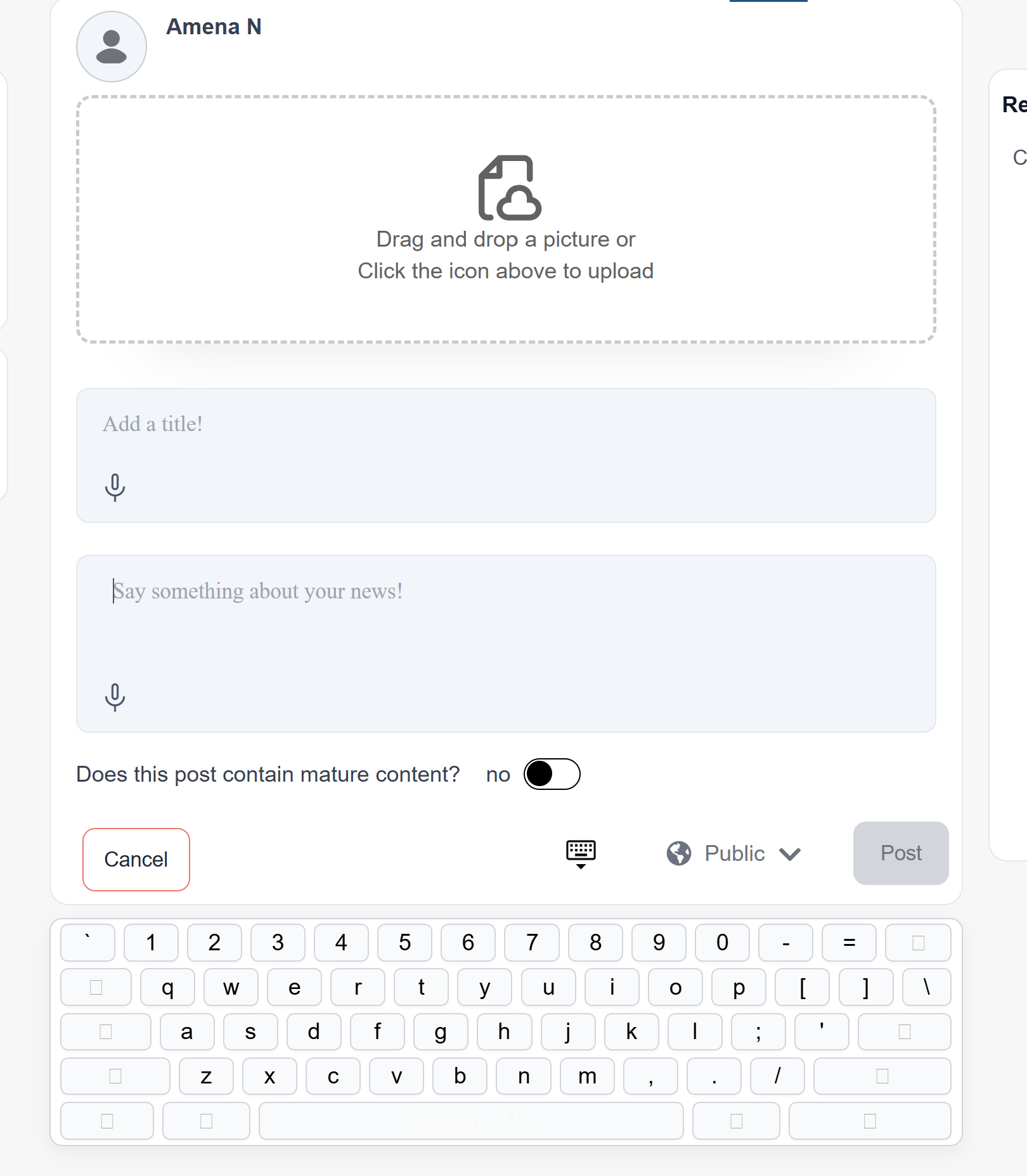
The Virtual Keyboard allows users to type in differenttheir languagesnative language even if their device keyboard does not support that language. It can be accessed directly within the applicationFront withoutPage needingapplication.
Accessing installthe additionalVirtual keyboardsKeyboard on their device. It helps users easily communicate and create posts in their preferred language.(Web)
Users can select their language and type using the on-screen keyboard provided in the application.
Howaccess the Virtual Keyboard Works
while creating or interacting with content.
Steps:
- Open
Opena section where typing is required (post, comment, or message). - Click on the text input
fieldwhere you want to type. Select the Virtual Keyboard option (if available).
- The
Choosekeyboardyourwillpreferredappearlanguage. Start typing usingon theon-screen keyboard.
Benefits of
Using the Virtual Keyboard
AllowsOnce typingthe inVirtual multipleKeyboard languages.
No need to install additional keyboard software.
Easy and convenient foropen, users whocan want to communicatetype in their nativeselected language.
Steps:
- Select the desired language.
- Use the on-screen keyboard to type.
- The text will appear in the input field.
(Screenshot)
Closing the Virtual Keyboard
Users can close the Virtual Keyboard after typing.
Steps:
- Click the close or hide option on the keyboard.
- Continue using the application normally.
(Screenshot)