
Using the Virtual Keyboard
The Virtual Keyboard allows users to type in their native language even if their device keyboard does not support that language. It can be accessed directly within the Front Page application.
Accessing the Virtual Keyboard (Web)
Users can access the Virtual Keyboard while creating or interacting with content.
Steps:
- Open a section where typing is required (post, comment, or message).
- Click on the text input field.
- Select the Virtual Keyboard option (if available).
- The keyboard will appear on the screen.
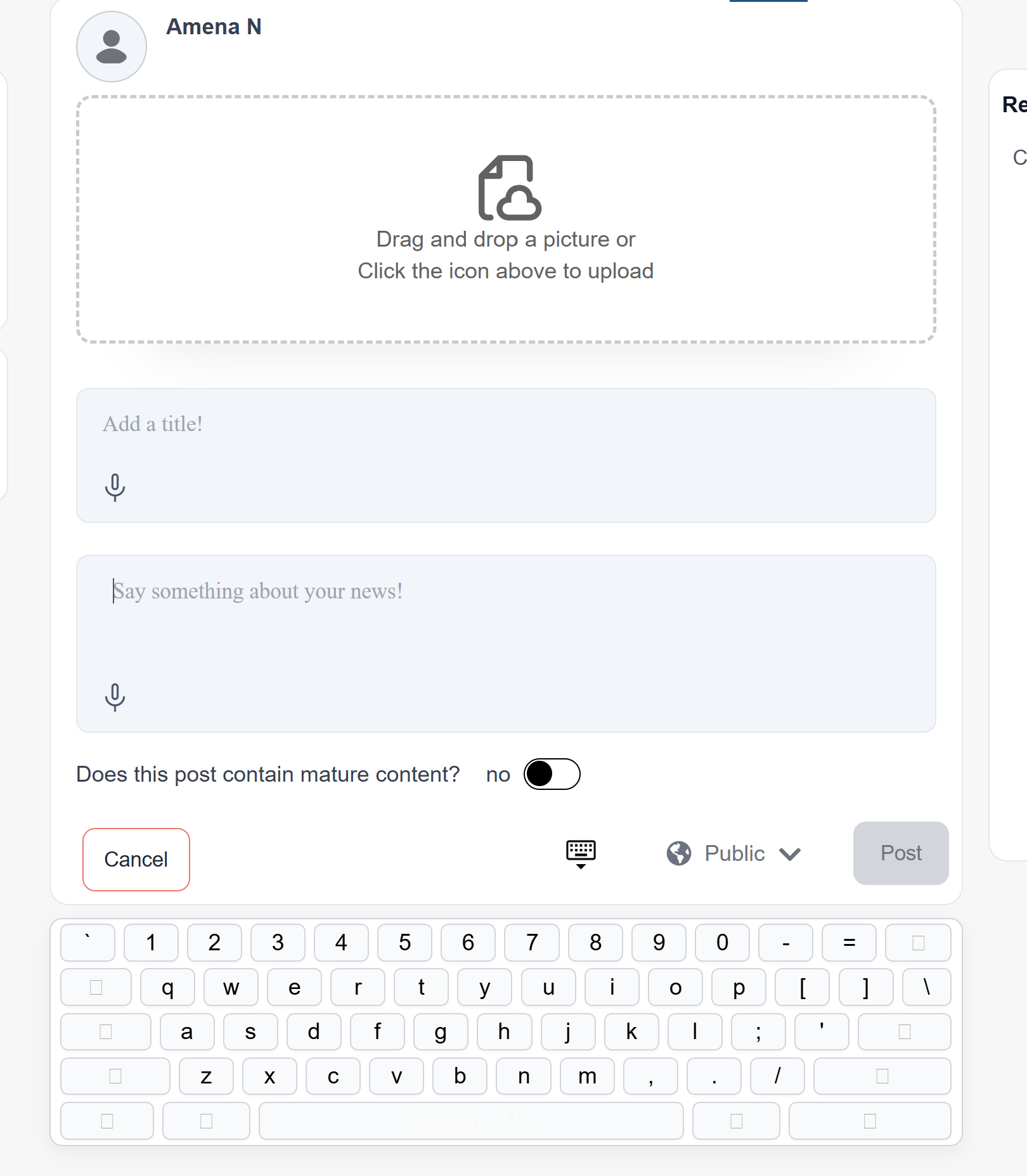
Using the Virtual Keyboard
Once the Virtual Keyboard is open, users can type in their selected language.
Steps:
- Select the desired language.
- Use the on-screen keyboard to type.
- The text will appear in the input field.
(Screenshot)
Closing the Virtual Keyboard
Users can close the Virtual Keyboard after typing.
Steps:
- Click the close or hide option on the keyboard.
- Continue using the application normally.
(Screenshot)
No comments to display
No comments to display