
Search and Filters
This section provides instructions on how users can search for listings and use filters to refine their results.
Users can easily find specific products or services using the search and filter features available on the platform.
Searching for Listings
-
Locate the search bar on the Home page.
-
Enter keywords related to the product or service you are looking for (e.g., car, job, furniture).
-
Press Enter or tap the search icon to view relevant results.
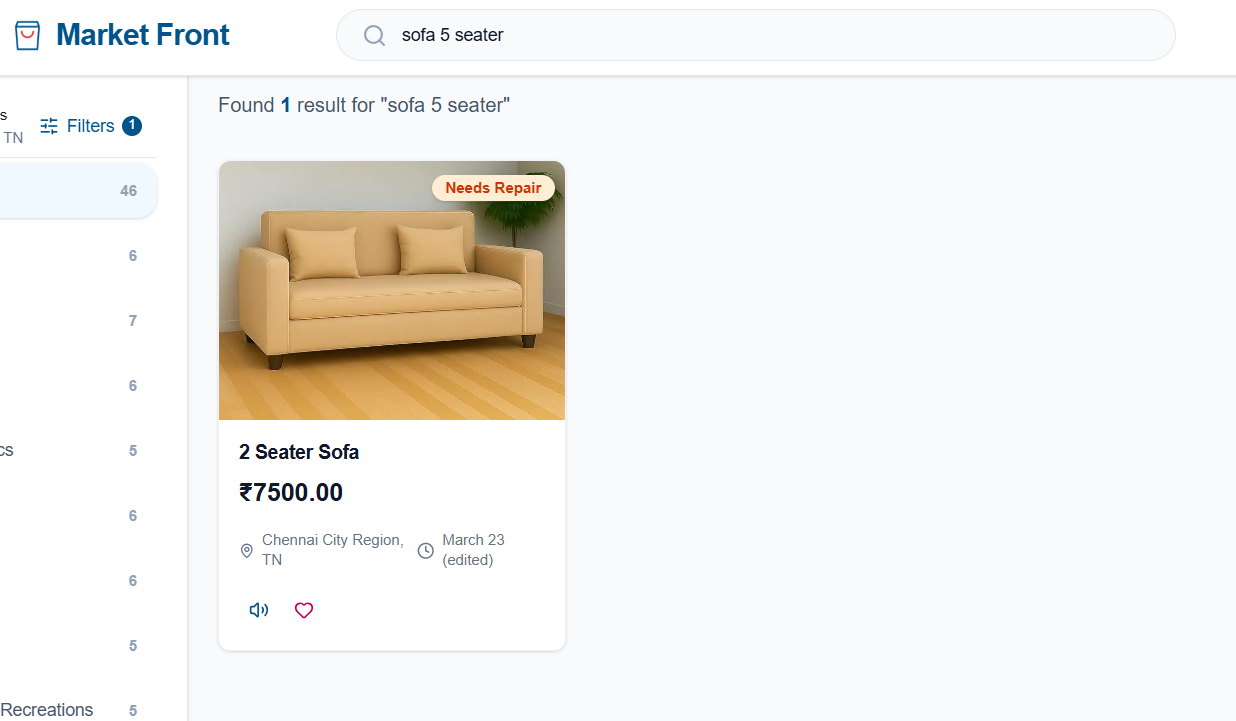
The application will display a list of advertisements that match the entered keywords.
Using Filters
To narrow down the search results, users can apply filters:
-
Sort By: Arrange listings based on relevance, latest, or other sorting options.
-
Date Posted: Filter results based on when the advertisement was posted.
-
Price Range (Min–Max): Set a minimum and maximum price to match your budget.
-
Condition: Select options such as New or Like New.
-
Location (within radius): Find listings within a specific distance from your location.
-
Click Apply Filters to update and view the refined results.
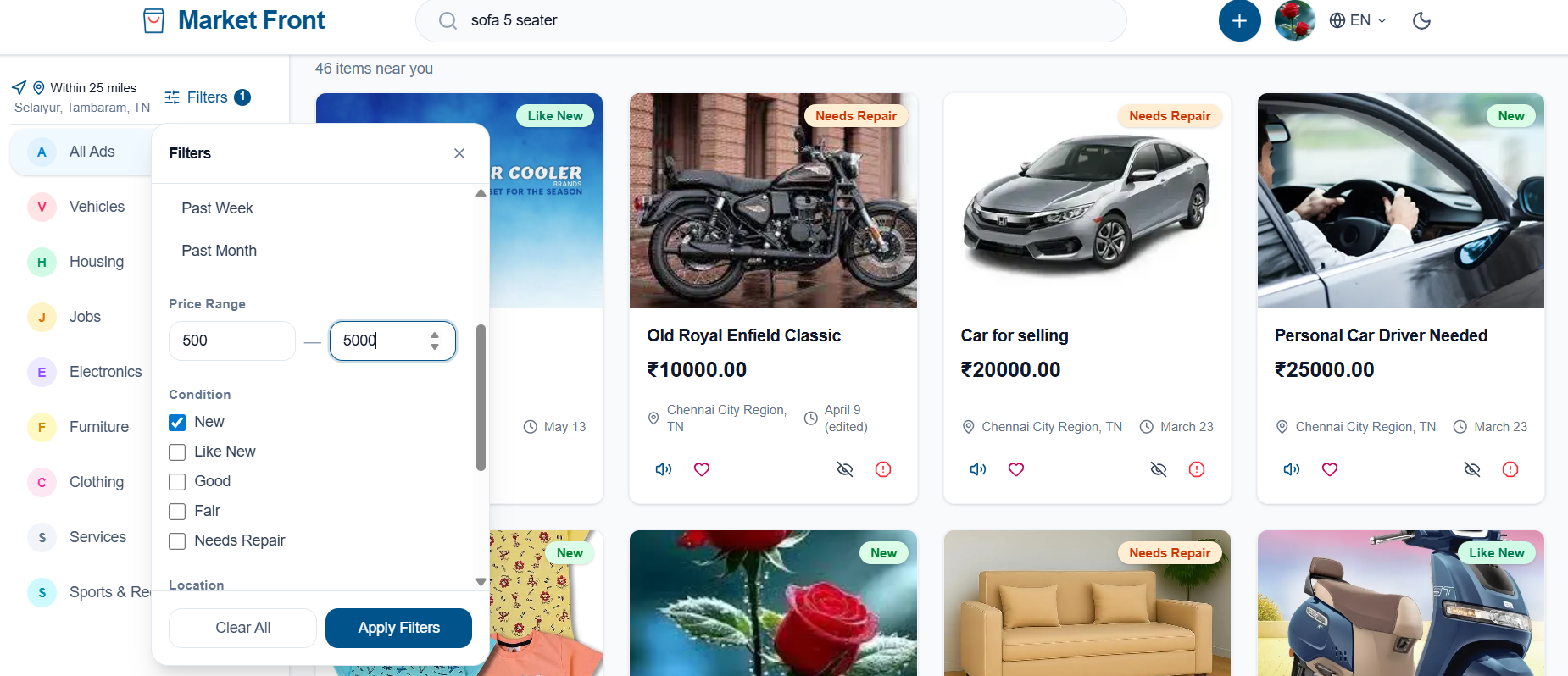
Filters are typically available on the left side (web) or within a filter option (mobile view).
Note: Categories such as Housing, Furniture, Electronics, Clothing, and Vehicles provide additional filter options to help users find products more accurately and efficiently.
Refining Results
-
Combine search keywords with filters to get more accurate results.
-
Modify or clear filters to broaden or change the results.
-
Browse through the filtered listings to find the most relevant items.
The search and filter functionality helps users quickly locate the products or services they need, improving the overall browsing experience.
No comments to display
No comments to display