
How Unfollow and Remove Work
Users can manage their community connections from other users’ profile pages.
Mutual Community Connection:
- User A follows User B
- User B follows User A
Both users are part of each other’s communities.
Unfollow a User
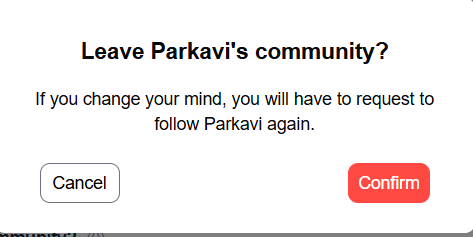
Unfollow allows a user to stop following another user’s community.
Example:
User A follows User B.
If User A Clicks Unfollow on User B’s profile:
Result:
- User A will no longer follow User B.
- User A will stop seeing User B’s posts in:
- Home/Vista feed
- Community feed
- Recent Posts
- Loss access to Creating posts in User B’s community
- User A can still view User B’s Public posts from User B’s profile page.
- User B will still follow User A if they previously joined User A’s community.
- User B is removed from User A’s Joined Community list.
- User A is removed from User B’s My Community list.
- No notification is sent to User B.
Steps:
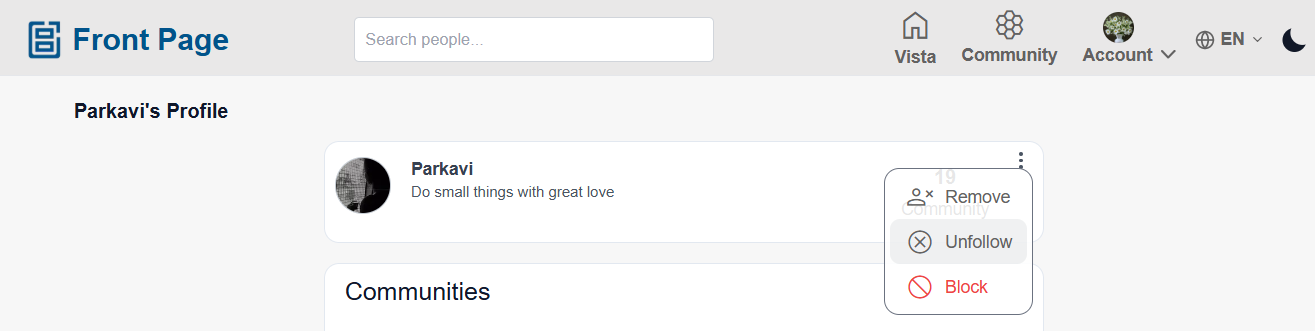
- Open the other user’s profile page.
- Click or tap the 3-dot ellipses menu.
- Click or tap Unfollow.
Remove a User
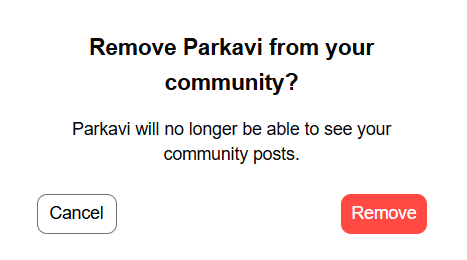
Remove allows a user to remove another user from their own community.
Example:
User B follows User A.
If User A Clicks Remove on User B’s profile:
Result:
- User B is removed from User A’s community.
- User B loses access to:
- User A’s community posts
- Community feed
- Creating posts in User A’s community
- User B can still view User A’s Public posts from User A’s profile page.
- User A may still follow User B if User A already joined User B’s community.
- User A is removed from User B’s Joined Community list.
- User B is removed from User A’s My Community list.
- No notification is sent to User B.
Steps:
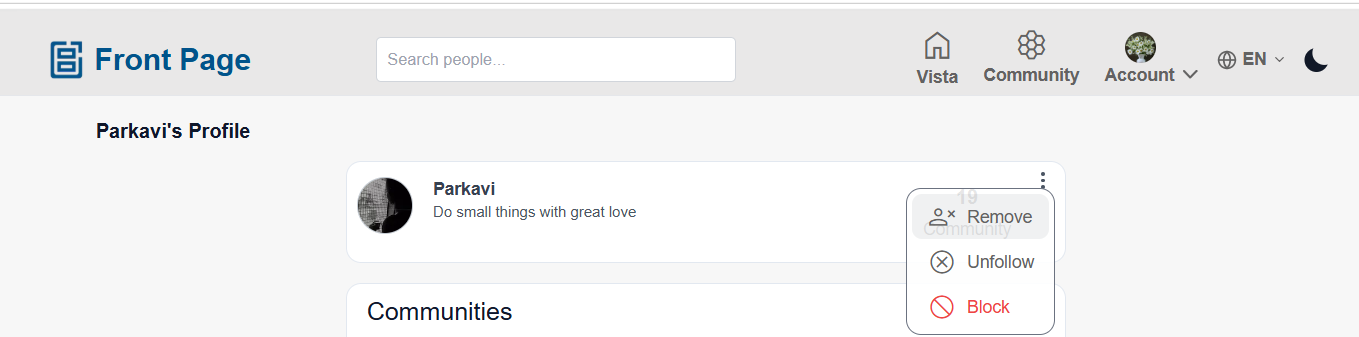
- Open the user’s profile page.
- Click or tap the 3-dot ellipses menu.
- Click or tap Remove.
No comments to display
No comments to display